---
title: "Images as Data: How Computers See the World"
author: "Hasan"
date: 2025-01-16
categories: [computer-vision, numpy, matplotlib, basics]
tags: [pixels, arrays, python, hands-on]
image: "https://images.unsplash.com/photo-1518709268805-4e9042af2176?ixlib=rb-4.0.3&ixid=M3wxMjA3fDB8MHxwaG90by1wYWdlfHx8fGVufDB8fHx8fA%3D%3D&auto=format&fit=crop&w=2025&q=80"
toc: true
series:
name: "Computer Vision Foundations"
number: 2
format:
html: default
jupyter: python3
search: false
---
## The Great Revelation: Everything is Numbers!
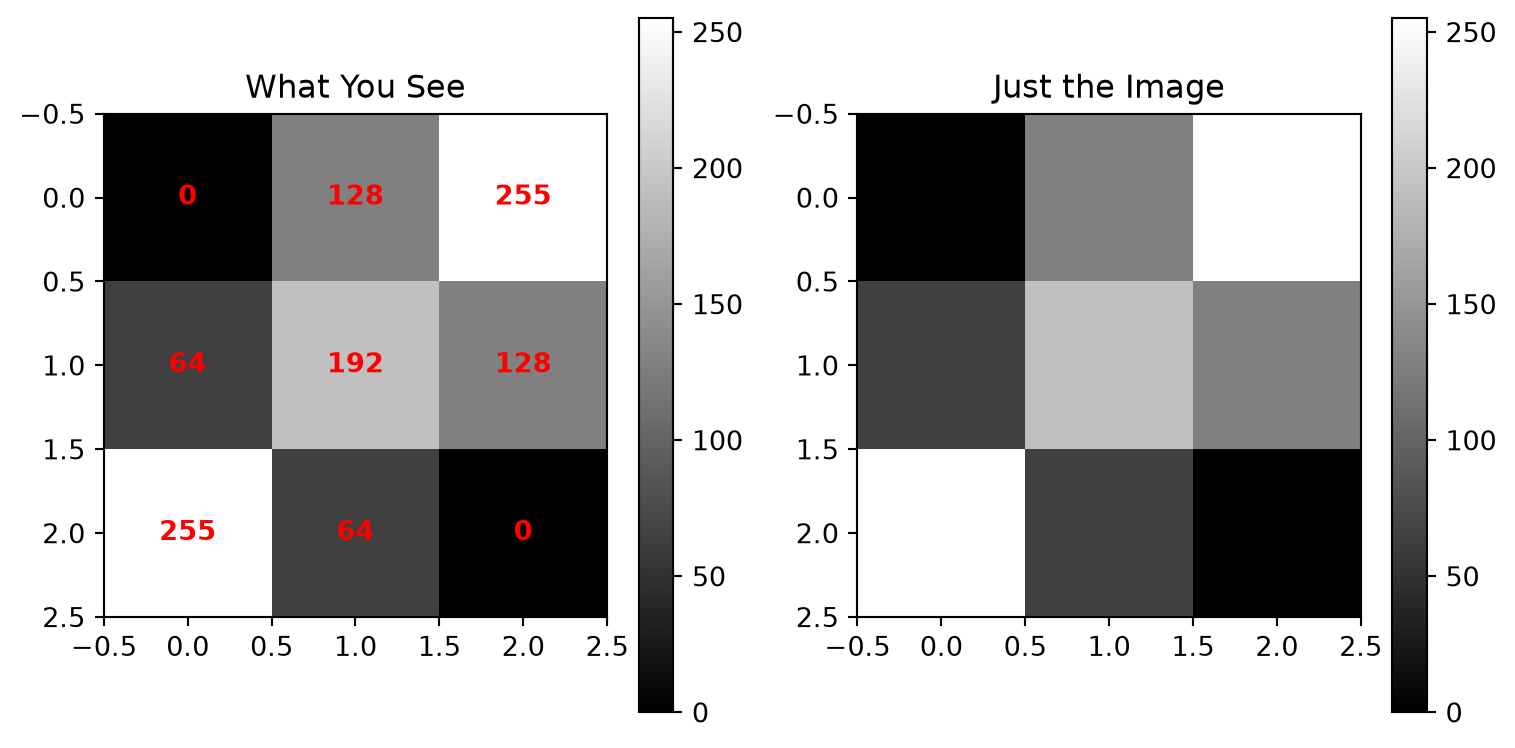
Remember when you first learned that music could be stored as numbers? Or that your favorite movie is just a sequence of 1s and 0s? Well, prepare for another "mind-blown" moment: **every image you've ever seen is just a big table of numbers.**
That sunset photo from your vacation? Numbers. Your profile picture? Numbers. The Mona Lisa? You guessed it—numbers!
Let's dive into this digital rabbit hole and discover how computers really see the world.
## The Pixel Story: Meet the Building Blocks
Imagine you're creating a mosaic with tiny colored tiles. Each tile is a single color, and when you step back, all these tiles together form a beautiful picture. In the digital world, these tiles are called **pixels** (short for "picture elements").
### Your First Digital Image
Let's create the world's tiniest image—just 3×3 pixels:
```{python}
#| eval: true
import numpy as np
import matplotlib.pyplot as plt

# Create a tiny 3x3 grayscale image
tiny_image = np.array([
    [0,   128, 255],
    [64,  192, 128],
    [255, 64,  0  ]
])

print("Our tiny image as numbers:")
print(tiny_image)
print(f"\nImage shape: {tiny_image.shape}")
print(f"Image data type: {tiny_image.dtype}")
```
Now let's see what this looks like as an actual image:
```{python}
#| eval: true
plt.figure(figsize=(8, 4))

# Show the numbers
plt.subplot(1, 2, 1)
plt.imshow(tiny_image, cmap='gray', interpolation='nearest')
plt.title("What You See")
for i in range(3):
    for j in range(3):
        plt.text(j, i, str(tiny_image[i, j]),
                ha='center', va='center', color='red', fontweight='bold')
plt.colorbar()

# Show as image
plt.subplot(1, 2, 2)
plt.imshow(tiny_image, cmap='gray', interpolation='nearest')
plt.title("Just the Image")
plt.colorbar()

plt.tight_layout()
plt.show()
```
**🎯 Try this!** [Open in Colab](https://colab.research.google.com/github/hasanpasha/quarto_blog_hasan/blob/main/notebooks/cv-foundations-02-images-as-data.ipynb)
## The Color Mystery: RGB Revealed
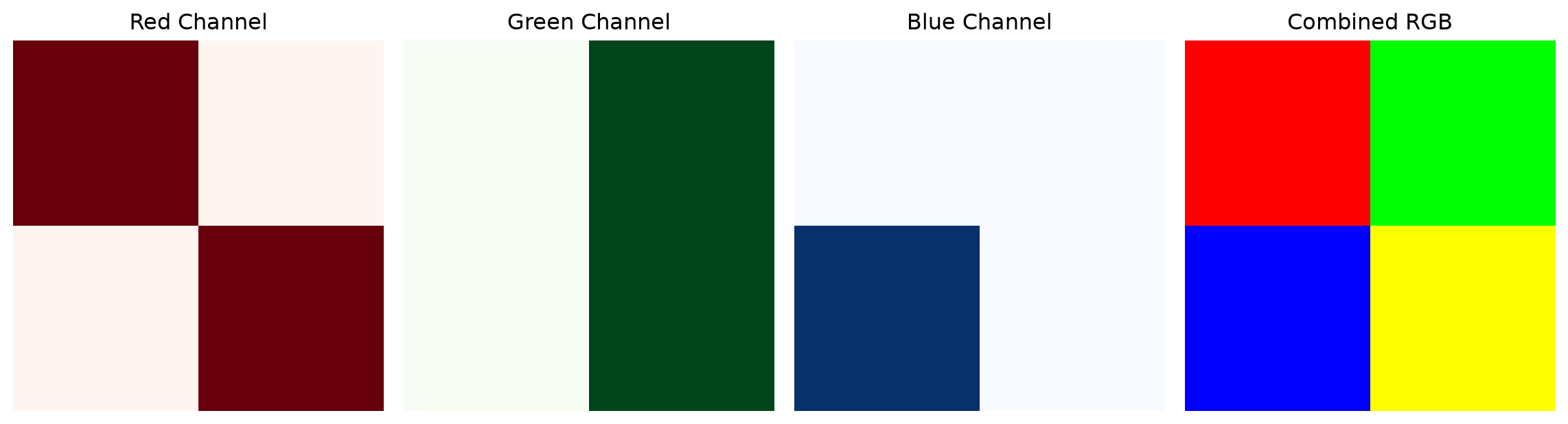
But wait—what about color images? Here's where it gets interesting. Color images are like having three grayscale images stacked on top of each other:
- **Red layer**: How much red is in each pixel
- **Green layer**: How much green is in each pixel
- **Blue layer**: How much blue is in each pixel
Think of it like making a sandwich with three transparent colored sheets!
```{python}
#| eval: true
# Create a simple 2x2 color image
color_image = np.array([
    [[255, 0, 0], [0, 255, 0]],      # Red pixel, Green pixel
    [[0, 0, 255], [255, 255, 0]]     # Blue pixel, Yellow pixel
])

print("Color image shape:", color_image.shape)
print("This means: 2 rows, 2 columns, 3 color channels")

plt.figure(figsize=(12, 4))

# Show each color channel
channels = ['Red', 'Green', 'Blue']
colors = ['Reds', 'Greens', 'Blues']

for i in range(3):
    plt.subplot(1, 4, i+1)
    plt.imshow(color_image[:, :, i], cmap=colors[i])
    plt.title(f"{channels[i]} Channel")
    plt.axis('off')

# Show the combined image
plt.subplot(1, 4, 4)
plt.imshow(color_image)
plt.title("Combined RGB")
plt.axis('off')

plt.tight_layout()
plt.show()
```
## Loading Your First Real Image
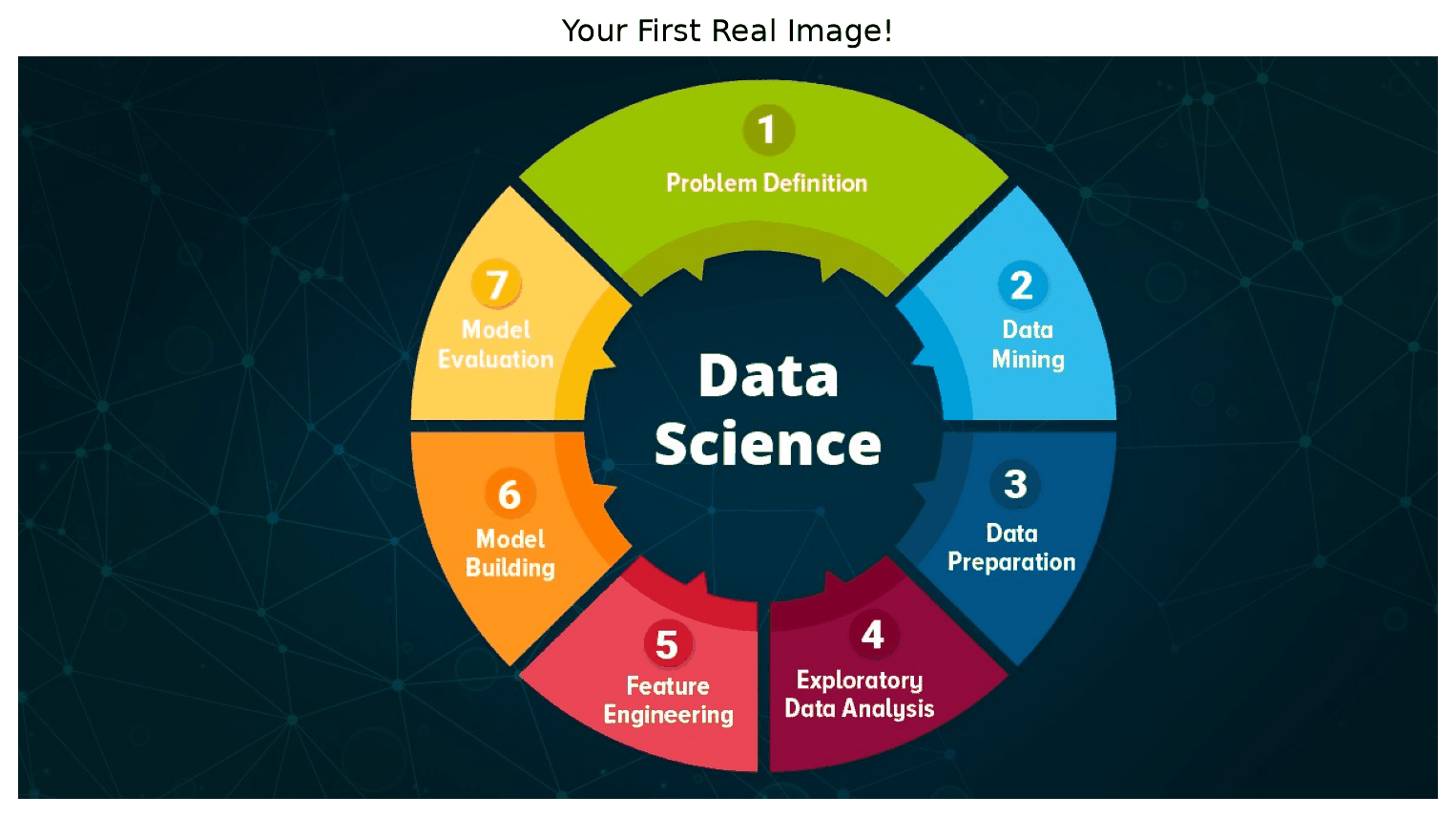
Enough with toy examples! Let's load a real photograph and explore it:
```{python}
#| eval: true
import cv2

# Load an image (you can upload your own to Colab!)
img = cv2.imread('images/image.jpg')

# OpenCV loads images in BGR format, let's convert to RGB
img_rgb = cv2.cvtColor(img, cv2.COLOR_BGR2RGB)

print(f"Image shape: {img_rgb.shape}")
print(f"Image size: {img_rgb.size} pixels")
print(f"Data type: {img_rgb.dtype}")

# Display the image
plt.figure(figsize=(10, 6))
plt.imshow(img_rgb)
plt.title("Your First Real Image!")
plt.axis('off')
plt.show()

# Let's examine a small patch
patch = img_rgb[100:110, 100:110]  # 10x10 pixel patch
print(f"\nA small 10x10 patch from the image:")
print(f"Shape: {patch.shape}")
print(f"First pixel RGB values: {patch[0, 0]}")
```
## The Magic of Image Operations
Now that we understand images as numbers, we can do mathematical operations on them! This is where the fun begins.
### Making Images Brighter or Darker
```{python}
#| eval: true
# Load and prepare image
img = cv2.imread('images/image.jpg')
img_rgb = cv2.cvtColor(img, cv2.COLOR_BGR2RGB)

# Make it brighter (add to all pixels)
brighter = np.clip(img_rgb + 50, 0, 255).astype(np.uint8)

# Make it darker (subtract from all pixels)
darker = np.clip(img_rgb - 50, 0, 255).astype(np.uint8)

# Show the results
plt.figure(figsize=(15, 5))

plt.subplot(1, 3, 1)
plt.imshow(darker)
plt.title("Darker (-50)")
plt.axis('off')

plt.subplot(1, 3, 2)
plt.imshow(img_rgb)
plt.title("Original")
plt.axis('off')

plt.subplot(1, 3, 3)
plt.imshow(brighter)
plt.title("Brighter (+50)")
plt.axis('off')

plt.tight_layout()
plt.show()
```
### Playing with Individual Color Channels
```{python}
#| eval: true
# Create different color effects
red_only = img_rgb.copy()
red_only[:, :, 1] = 0  # Remove green
red_only[:, :, 2] = 0  # Remove blue

green_only = img_rgb.copy()
green_only[:, :, 0] = 0  # Remove red
green_only[:, :, 2] = 0  # Remove blue

blue_only = img_rgb.copy()
blue_only[:, :, 0] = 0  # Remove red
blue_only[:, :, 1] = 0  # Remove green

# Display the results
plt.figure(figsize=(15, 5))

plt.subplot(1, 3, 1)
plt.imshow(red_only)
plt.title("Red Channel Only")
plt.axis('off')

plt.subplot(1, 3, 2)
plt.imshow(green_only)
plt.title("Green Channel Only")
plt.axis('off')

plt.subplot(1, 3, 3)
plt.imshow(blue_only)
plt.title("Blue Channel Only")
plt.axis('off')

plt.tight_layout()
plt.show()
```
## The Grayscale Transformation
Converting to grayscale is one of the most common operations in computer vision. But it's not just about averaging the RGB values—there's a secret formula!
```{python}
#| eval: true
# Method 1: Simple average (not the best)
gray_simple = np.mean(img_rgb, axis=2).astype(np.uint8)

# Method 2: Weighted average (the right way!)
# Human eyes are more sensitive to green, less to blue
gray_weighted = (0.299 * img_rgb[:, :, 0] +
                0.587 * img_rgb[:, :, 1] +
                0.114 * img_rgb[:, :, 2]).astype(np.uint8)

# Method 3: Using OpenCV (does the weighted average for us)
gray_opencv = cv2.cvtColor(img, cv2.COLOR_BGR2GRAY)

plt.figure(figsize=(15, 5))

plt.subplot(1, 3, 1)
plt.imshow(gray_simple, cmap='gray')
plt.title("Simple Average")
plt.axis('off')

plt.subplot(1, 3, 2)
plt.imshow(gray_weighted, cmap='gray')
plt.title("Weighted Average")
plt.axis('off')

plt.subplot(1, 3, 3)
plt.imshow(gray_opencv, cmap='gray')
plt.title("OpenCV Method")
plt.axis('off')

plt.tight_layout()
plt.show()
```
## Fun with Image Arithmetic
Since images are just arrays, we can do all sorts of mathematical operations:
```{python}
#| eval: true
# Create a simple pattern
rows, cols = img_rgb.shape[:2]
x_gradient = np.linspace(0, 255, cols).astype(np.uint8)
y_gradient = np.linspace(0, 255, rows).astype(np.uint8)

# Create gradient patterns
horizontal_gradient = np.tile(x_gradient, (rows, 1))
vertical_gradient = np.tile(y_gradient.reshape(-1, 1), (1, cols))

plt.figure(figsize=(15, 5))

plt.subplot(1, 3, 1)
plt.imshow(horizontal_gradient, cmap='gray')
plt.title("Horizontal Gradient")
plt.axis('off')

plt.subplot(1, 3, 2)
plt.imshow(vertical_gradient, cmap='gray')
plt.title("Vertical Gradient")
plt.axis('off')

# Combine gradients
combined = (horizontal_gradient + vertical_gradient) // 2
plt.subplot(1, 3, 3)
plt.imshow(combined, cmap='gray')
plt.title("Combined Gradients")
plt.axis('off')

plt.tight_layout()
plt.show()
```
## Your First Image Filter: The Blur Effect
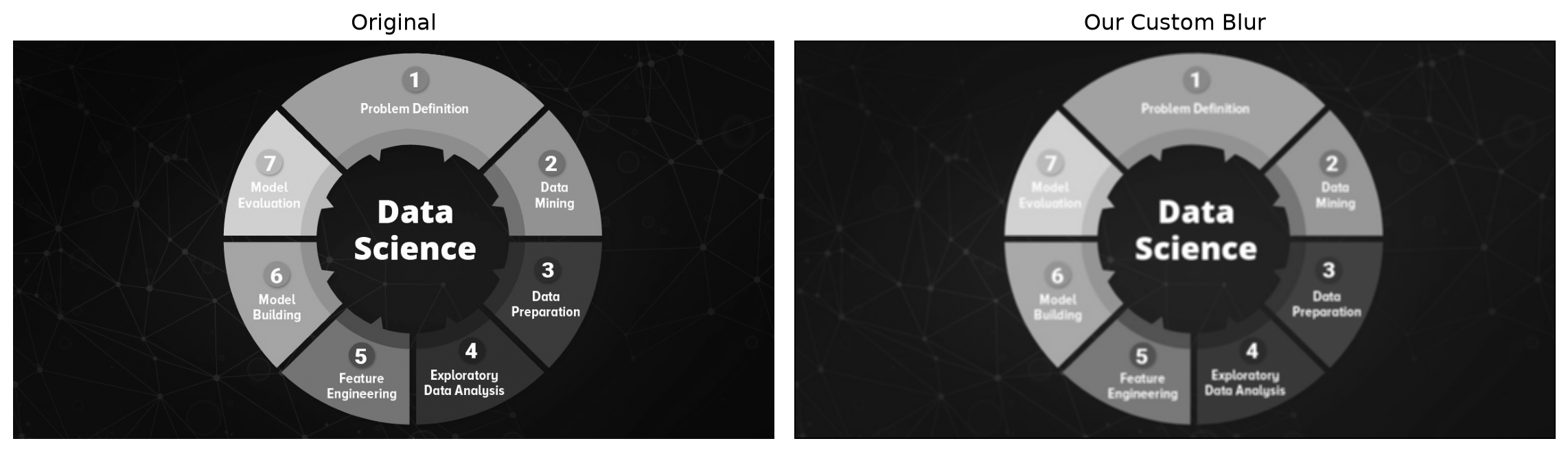
Let's create a simple blur effect by averaging neighboring pixels:
```{python}
#| eval: true
def simple_blur(image, kernel_size=5):
    """Apply a simple blur by averaging neighboring pixels"""
    blurred = np.zeros_like(image)
    offset = kernel_size // 2

    for i in range(offset, image.shape[0] - offset):
        for j in range(offset, image.shape[1] - offset):
            # Average the pixels in the kernel area
            neighborhood = image[i-offset:i+offset+1, j-offset:j+offset+1]
            blurred[i, j] = np.mean(neighborhood)

    return blurred

# Apply our blur to a grayscale image
gray_img = cv2.cvtColor(img, cv2.COLOR_BGR2GRAY)
blurred_img = simple_blur(gray_img)

plt.figure(figsize=(12, 6))

plt.subplot(1, 2, 1)
plt.imshow(gray_img, cmap='gray')
plt.title("Original")
plt.axis('off')

plt.subplot(1, 2, 2)
plt.imshow(blurred_img, cmap='gray')
plt.title("Our Custom Blur")
plt.axis('off')

plt.tight_layout()
plt.show()
```
## The Big Picture: What We've Learned
🎉 **Congratulations!** You've just unlocked one of the most important concepts in computer vision. Here's what you now know:
1. **Images are arrays of numbers** (0-255 for each pixel)
2. **Grayscale images** are 2D arrays (height × width)
3. **Color images** are 3D arrays (height × width × 3 channels)
4. **Image processing** is just mathematical operations on these arrays
5. **You can create effects** by manipulating pixel values
## Practical Exercises
Before moving to the next post, try these fun experiments:
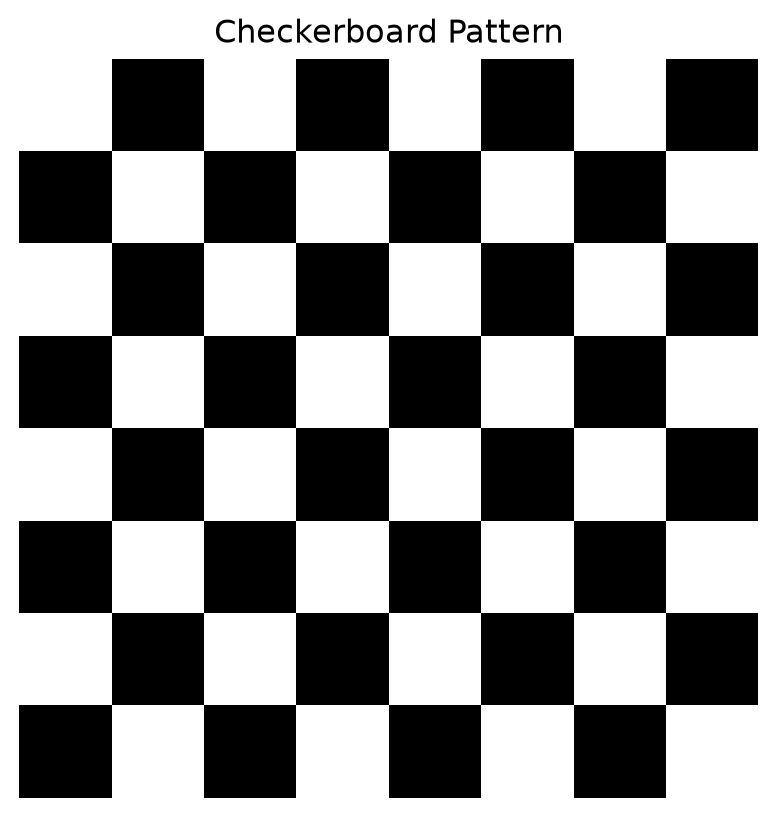
### 🎯 **Exercise 1: Create Your Own Pattern**
```{python}
#| eval: true
# Create a checkerboard pattern
size = 200
checkerboard = np.zeros((size, size))
square_size = 25

for i in range(0, size, square_size):
    for j in range(0, size, square_size):
        if (i // square_size + j // square_size) % 2 == 0:
            checkerboard[i:i+square_size, j:j+square_size] = 255

plt.imshow(checkerboard, cmap='gray')
plt.title("Checkerboard Pattern")
plt.axis('off')
plt.show()
```
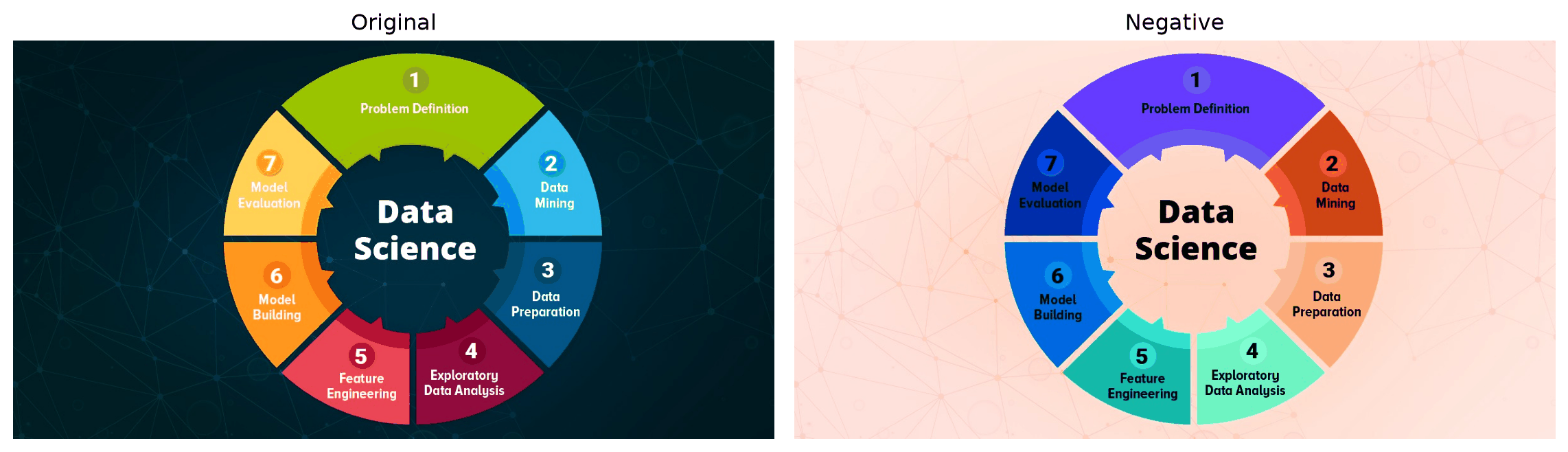
### 🎯 **Exercise 2: Image Negative**
```{python}
#| eval: true
# Create a negative effect (like old film negatives)
negative = 255 - img_rgb

plt.figure(figsize=(12, 6))
plt.subplot(1, 2, 1)
plt.imshow(img_rgb)
plt.title("Original")
plt.axis('off')

plt.subplot(1, 2, 2)
plt.imshow(negative)
plt.title("Negative")
plt.axis('off')

plt.tight_layout()
plt.show()
```
## What's Coming Next?
In our next adventure, [**"OpenCV Essentials: Your First Computer Vision Toolkit"**](../03-opencv-essentials/), we'll:
- Master the essential OpenCV functions
- Learn to resize, crop, and rotate images like a pro
- Build our first interactive image viewer
- Create a simple photo editor
The best part? Everything we've learned about images as numbers will make OpenCV operations crystal clear!
## Key Takeaways
- **Images = Numbers**: Every pixel is just a number (or three numbers for color)
- **Shape Matters**: Always check `image.shape` to understand your data
- **Math is Magic**: Simple arithmetic creates powerful visual effects
- **Start Simple**: Complex algorithms are built from these basic operations
:::{.callout-tip}
## Hands-On Practice
Ready to experiment? Try the full interactive notebook: [**Images as Data - Interactive Lab**](https://colab.research.google.com/drive/1AbCdEfGhIjKlMnOpQrStUvWxYz123456)
Upload your own photos and see them transform into numbers!
:::
:::{.callout-note}
## Series Navigation
- **Previous**: [Why Computer Vision?](01-why-computer-vision.qmd)
- **Next**: [OpenCV Essentials: Your First Computer Vision Toolkit](03-opencv-essentials.qmd)
- **Series Home**: [Computer Vision Foundations](../computer-vision-foundations.qmd)
:::
---
*Remember: You've just learned to see the world the way computers do. That's no small feat! In the next post, we'll use this knowledge to build amazing things with OpenCV.*