---
title: "Image Segmentation: Dividing and Conquering"
author: "Hasan"
date: 2025-01-23
categories: [computer-vision, segmentation, morphology, thresholding]
tags: [segmentation, thresholding, watershed, erosion, dilation, morphology, contours]
image: "images/segmentation-header.jpg"
toc: true
series:
name: "Computer Vision Foundations"
number: 5
format:
html: default
jupyter: python3
search: false
---
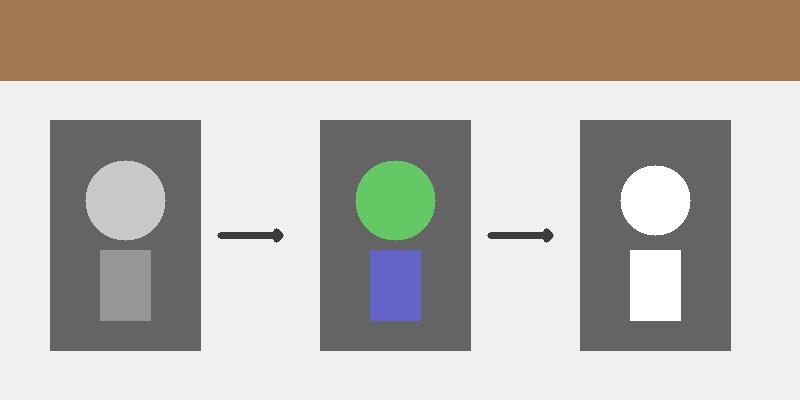
## The Art of Divide and Conquer
Imagine you're looking at a crowded photo and trying to identify individual people. Your brain automatically separates the image into distinct regions—faces, bodies, background objects. This is exactly what **image segmentation** does: it divides an image into meaningful parts that we can analyze separately.
Today, we'll master the classical techniques that form the foundation of modern computer vision. From simple thresholding to advanced morphological operations, you'll learn to segment images like a pro!
:::{.callout-tip}
**Try it yourself!** Open this [interactive Colab notebook](https://colab.research.google.com/github/hasanpasha/quarto_blog_hasan/blob/main/notebooks/cv-foundations-05-image-segmentation.ipynb) to experiment with segmentation techniques as we build this tutorial.
:::
## What is Image Segmentation?
**Image segmentation** is the process of partitioning an image into multiple segments or regions. Each segment represents something meaningful—objects, boundaries, or areas of interest.
Think of it like:
- **Coloring book**: Each region gets its own color
- **Jigsaw puzzle**: Breaking the image into pieces
- **Map making**: Dividing territory into districts
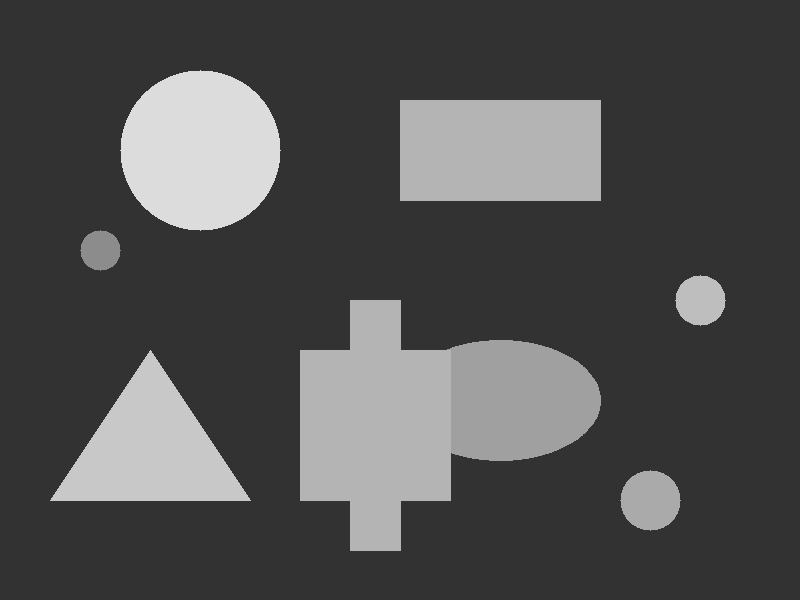
This synthetic image shows perfect segmentation targets:
- **Bright objects** on dark background
- **Different intensities** for various techniques
- **Multiple shapes** to test robustness
- **Noise elements** to challenge algorithms
## Technique 1: Thresholding - The Foundation
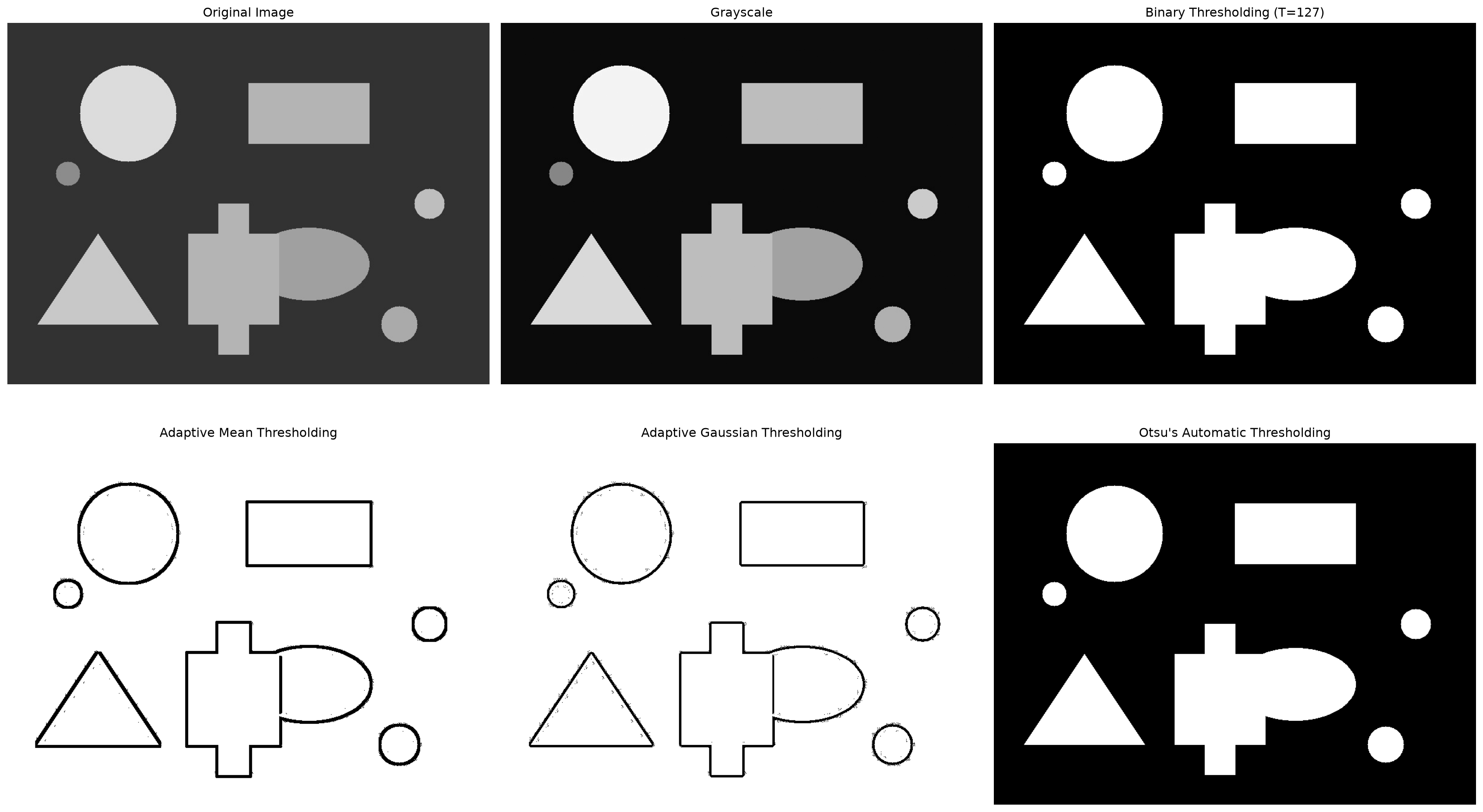
**Thresholding** is the simplest segmentation technique. It converts grayscale images to binary (black and white) by setting a threshold value.
```{python}
#| eval: true
import cv2
import numpy as np
import matplotlib.pyplot as plt

# Load our synthetic segmentation demo image
img = cv2.imread('images/segmentation-demo.jpg')
img_rgb = cv2.cvtColor(img, cv2.COLOR_BGR2RGB)
gray = cv2.cvtColor(img, cv2.COLOR_BGR2GRAY)

# Simple thresholding
def apply_thresholding(image, threshold_value=127):
    """Apply different thresholding techniques"""

    # Simple binary thresholding
    _, binary = cv2.threshold(image, threshold_value, 255, cv2.THRESH_BINARY)

    # Adaptive thresholding (handles varying lighting)
    adaptive_mean = cv2.adaptiveThreshold(
        image, 255, cv2.ADAPTIVE_THRESH_MEAN_C, cv2.THRESH_BINARY, 11, 2
    )

    adaptive_gaussian = cv2.adaptiveThreshold(
        image, 255, cv2.ADAPTIVE_THRESH_GAUSSIAN_C, cv2.THRESH_BINARY, 11, 2
    )

    # Otsu's thresholding (automatically finds best threshold)
    _, otsu = cv2.threshold(image, 0, 255, cv2.THRESH_BINARY + cv2.THRESH_OTSU)

    return binary, adaptive_mean, adaptive_gaussian, otsu

# Apply different thresholding techniques
binary, adaptive_mean, adaptive_gaussian, otsu = apply_thresholding(gray)

# Display results
plt.figure(figsize=(20, 12))

plt.subplot(2, 3, 1)
plt.imshow(img_rgb)
plt.title("Original Image")
plt.axis('off')

plt.subplot(2, 3, 2)
plt.imshow(gray, cmap='gray')
plt.title("Grayscale")
plt.axis('off')

plt.subplot(2, 3, 3)
plt.imshow(binary, cmap='gray')
plt.title("Binary Thresholding (T=127)")
plt.axis('off')

plt.subplot(2, 3, 4)
plt.imshow(adaptive_mean, cmap='gray')
plt.title("Adaptive Mean Thresholding")
plt.axis('off')

plt.subplot(2, 3, 5)
plt.imshow(adaptive_gaussian, cmap='gray')
plt.title("Adaptive Gaussian Thresholding")
plt.axis('off')

plt.subplot(2, 3, 6)
plt.imshow(otsu, cmap='gray')
plt.title("Otsu's Automatic Thresholding")
plt.axis('off')

plt.tight_layout()
plt.show()

print("🎯 Thresholding Results:")
print(f"- Binary: Simple threshold at 127")
print(f"- Adaptive Mean: Local neighborhood average")
print(f"- Adaptive Gaussian: Weighted neighborhood average")
print(f"- Otsu: Automatically found optimal threshold")
```
**🔥 Amazing!** Each technique handles different scenarios:
- **Binary**: Works when lighting is uniform
- **Adaptive**: Handles varying lighting conditions
- **Otsu**: Automatically finds the best threshold
## Technique 2: Morphological Operations - Shape Surgery
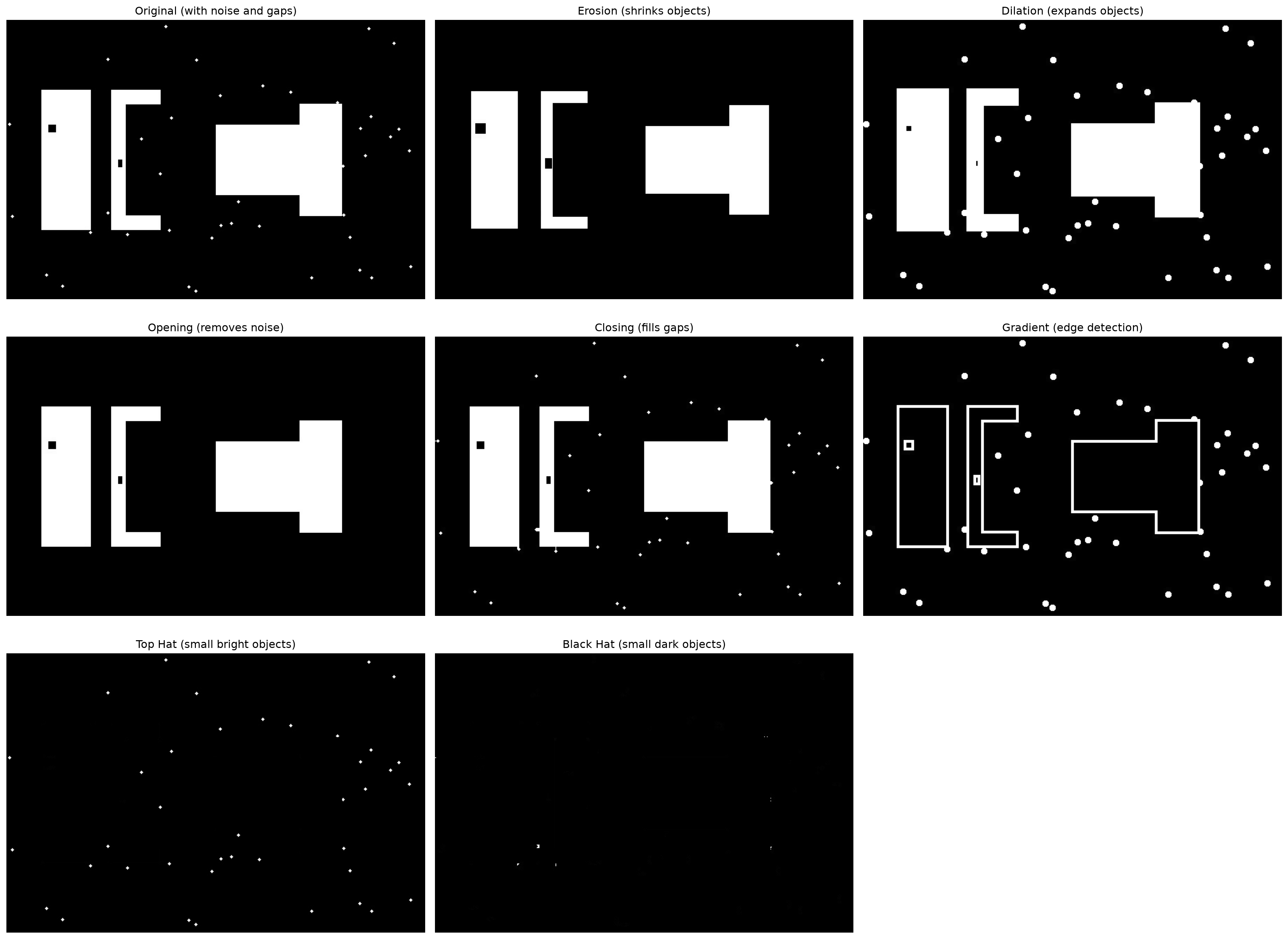
**Morphological operations** are like performing surgery on shapes. They can clean up noise, separate connected objects, or fill gaps.
### The Core Operations
```{python}
#| eval: true
# Load our morphological demo image (designed for these operations)
morph_img = cv2.imread('images/morphological-demo.jpg', cv2.IMREAD_GRAYSCALE)

def demonstrate_morphological_operations(image):
    """Show the four basic morphological operations"""

    # Define structuring element (kernel)
    kernel = np.ones((5, 5), np.uint8)

    # Basic operations
    erosion = cv2.erode(image, kernel, iterations=1)
    dilation = cv2.dilate(image, kernel, iterations=1)
    opening = cv2.morphologyEx(image, cv2.MORPH_OPEN, kernel)
    closing = cv2.morphologyEx(image, cv2.MORPH_CLOSE, kernel)

    # Advanced operations
    gradient = cv2.morphologyEx(image, cv2.MORPH_GRADIENT, kernel)
    tophat = cv2.morphologyEx(image, cv2.MORPH_TOPHAT, kernel)
    blackhat = cv2.morphologyEx(image, cv2.MORPH_BLACKHAT, kernel)

    return erosion, dilation, opening, closing, gradient, tophat, blackhat

# Apply morphological operations
erosion, dilation, opening, closing, gradient, tophat, blackhat = demonstrate_morphological_operations(morph_img)

# Display results
plt.figure(figsize=(20, 15))

plt.subplot(3, 3, 1)
plt.imshow(morph_img, cmap='gray')
plt.title("Original (with noise and gaps)")
plt.axis('off')

plt.subplot(3, 3, 2)
plt.imshow(erosion, cmap='gray')
plt.title("Erosion (shrinks objects)")
plt.axis('off')

plt.subplot(3, 3, 3)
plt.imshow(dilation, cmap='gray')
plt.title("Dilation (expands objects)")
plt.axis('off')

plt.subplot(3, 3, 4)
plt.imshow(opening, cmap='gray')
plt.title("Opening (removes noise)")
plt.axis('off')

plt.subplot(3, 3, 5)
plt.imshow(closing, cmap='gray')
plt.title("Closing (fills gaps)")
plt.axis('off')

plt.subplot(3, 3, 6)
plt.imshow(gradient, cmap='gray')
plt.title("Gradient (edge detection)")
plt.axis('off')

plt.subplot(3, 3, 7)
plt.imshow(tophat, cmap='gray')
plt.title("Top Hat (small bright objects)")
plt.axis('off')

plt.subplot(3, 3, 8)
plt.imshow(blackhat, cmap='gray')
plt.title("Black Hat (small dark objects)")
plt.axis('off')

plt.tight_layout()
plt.show()

print("🔧 Morphological Operations Explained:")
print("- Erosion: Shrinks white regions (removes noise)")
print("- Dilation: Expands white regions (fills small gaps)")
print("- Opening: Erosion followed by dilation (removes small noise)")
print("- Closing: Dilation followed by erosion (fills gaps in objects)")
print("- Gradient: Difference between dilation and erosion (edges)")
print("- Top Hat: Original minus opening (small bright features)")
print("- Black Hat: Closing minus original (small dark features)")
```
### Understanding Kernels
```{python}
#| eval: true
# Different kernel shapes for different effects
def show_kernel_effects():
    """Demonstrate how different kernels affect morphological operations"""

    # Create different kernels
    kernels = {
        'Rectangle 3x3': np.ones((3, 3), np.uint8),
        'Rectangle 7x7': np.ones((7, 7), np.uint8),
        'Cross': cv2.getStructuringElement(cv2.MORPH_CROSS, (5, 5)),
        'Ellipse': cv2.getStructuringElement(cv2.MORPH_ELLIPSE, (5, 5))
    }

    results = {}
    for name, kernel in kernels.items():
        # Apply opening operation with different kernels
        result = cv2.morphologyEx(morph_img, cv2.MORPH_OPEN, kernel)
        results[name] = result

    return kernels, results

kernels, kernel_results = show_kernel_effects()

# Visualize kernel effects
plt.figure(figsize=(20, 10))

plt.subplot(2, 5, 1)
plt.imshow(morph_img, cmap='gray')
plt.title("Original")
plt.axis('off')

for i, (name, result) in enumerate(kernel_results.items(), 2):
    plt.subplot(2, 5, i)
    plt.imshow(result, cmap='gray')
    plt.title(f"Opening with {name}")
    plt.axis('off')

# Show the kernels themselves
for i, (name, kernel) in enumerate(kernels.items(), 6):
    plt.subplot(2, 5, i)
    plt.imshow(kernel * 255, cmap='gray')
    plt.title(f"{name} Kernel")
    plt.axis('off')

plt.tight_layout()
plt.show()

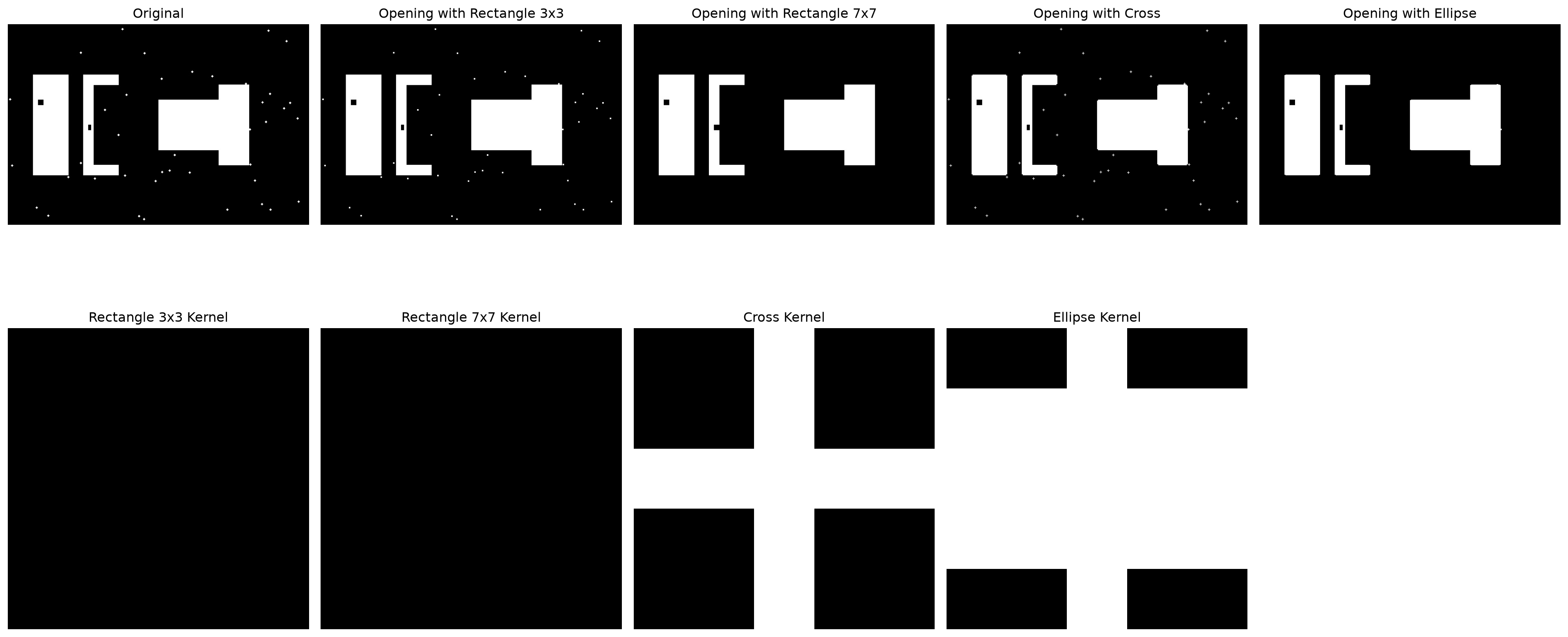
print("🎯 Kernel Shape Effects:")
print("- Rectangle: General-purpose, preserves rectangular features")
print("- Cross: Connects horizontal/vertical elements")
print("- Ellipse: Preserves circular/curved features")
print("- Size matters: Larger kernels = stronger effects")
```
## Technique 3: Watershed Segmentation - Flooding Algorithm
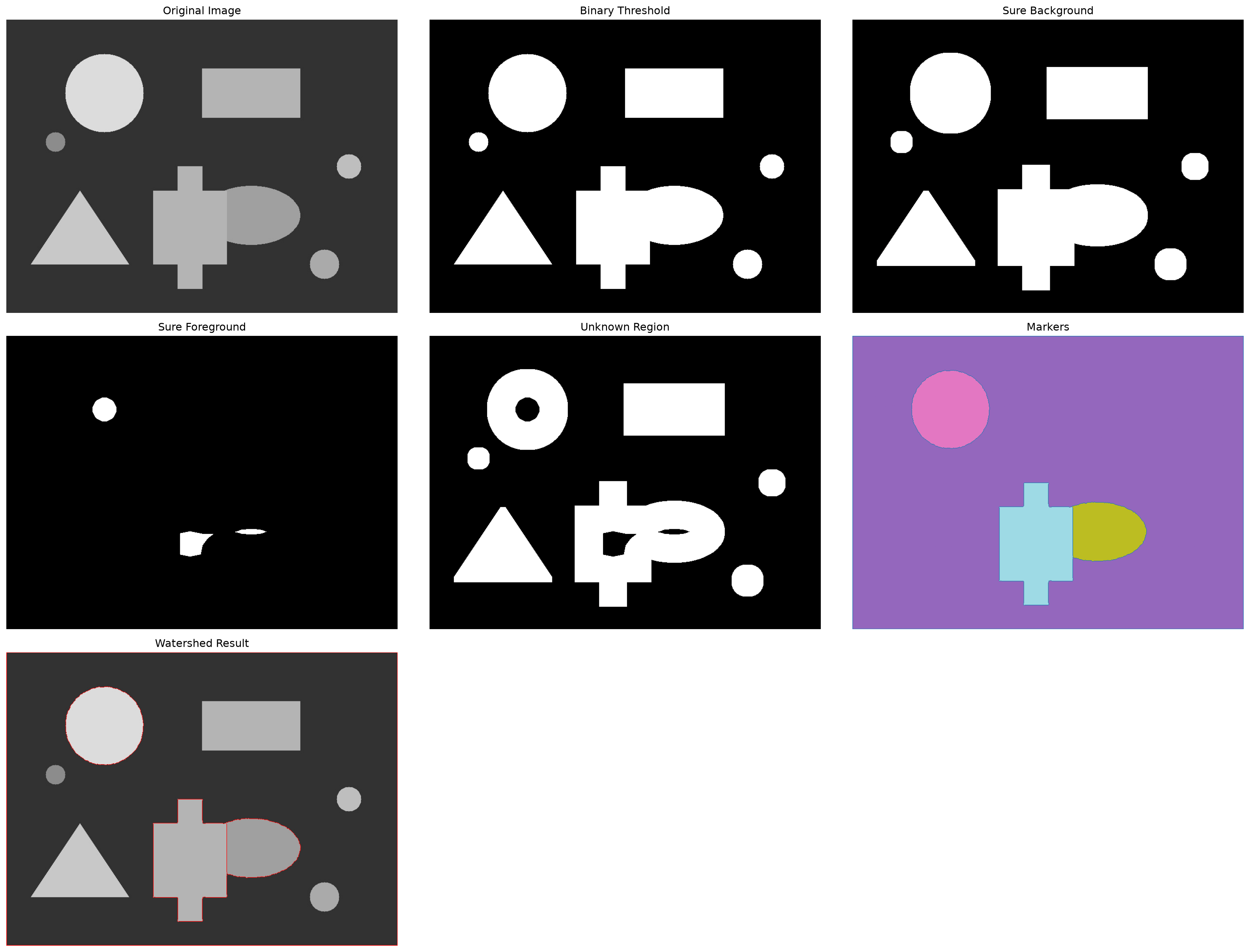
**Watershed segmentation** treats the image like a topographic map and "floods" it to separate regions. Perfect for separating touching objects!
```{python}
#| eval: true
from scipy import ndimage
from skimage.segmentation import watershed

def watershed_segmentation(image):
    """Apply watershed segmentation to separate touching objects"""

    # Convert to grayscale if needed
    if len(image.shape) == 3:
        gray = cv2.cvtColor(image, cv2.COLOR_RGB2GRAY)
    else:
        gray = image

    # Apply threshold to get binary image
    _, binary = cv2.threshold(gray, 0, 255, cv2.THRESH_BINARY + cv2.THRESH_OTSU)

    # Remove noise with morphological opening
    kernel = np.ones((3, 3), np.uint8)
    opening = cv2.morphologyEx(binary, cv2.MORPH_OPEN, kernel, iterations=2)

    # Find sure background area
    sure_bg = cv2.dilate(opening, kernel, iterations=3)

    # Find sure foreground area using distance transform
    dist_transform = cv2.distanceTransform(opening, cv2.DIST_L2, 5)
    _, sure_fg = cv2.threshold(dist_transform, 0.7 * dist_transform.max(), 255, 0)

    # Find unknown region
    sure_fg = np.uint8(sure_fg)
    unknown = cv2.subtract(sure_bg, sure_fg)

    # Marker labelling
    _, markers = cv2.connectedComponents(sure_fg)

    # Add one to all labels so that sure background is not 0, but 1
    markers = markers + 1

    # Mark the region of unknown with zero
    markers[unknown == 255] = 0

    # Apply watershed
    if len(image.shape) == 3:
        markers = cv2.watershed(image, markers)
        result = image.copy()
        result[markers == -1] = [255, 0, 0]  # Mark boundaries in red
    else:
        # For grayscale, create a color version for visualization
        result = cv2.cvtColor(gray, cv2.COLOR_GRAY2RGB)
        markers_watershed = cv2.watershed(result, markers)
        result[markers_watershed == -1] = [255, 0, 0]

    return binary, sure_bg, sure_fg, unknown, markers, result

# Apply watershed to our demo image
binary, sure_bg, sure_fg, unknown, markers, watershed_result = watershed_segmentation(img_rgb)

# Display watershed process
plt.figure(figsize=(20, 15))

plt.subplot(3, 3, 1)
plt.imshow(img_rgb)
plt.title("Original Image")
plt.axis('off')

plt.subplot(3, 3, 2)
plt.imshow(binary, cmap='gray')
plt.title("Binary Threshold")
plt.axis('off')

plt.subplot(3, 3, 3)
plt.imshow(sure_bg, cmap='gray')
plt.title("Sure Background")
plt.axis('off')

plt.subplot(3, 3, 4)
plt.imshow(sure_fg, cmap='gray')
plt.title("Sure Foreground")
plt.axis('off')

plt.subplot(3, 3, 5)
plt.imshow(unknown, cmap='gray')
plt.title("Unknown Region")
plt.axis('off')

plt.subplot(3, 3, 6)
plt.imshow(markers, cmap='tab20')
plt.title("Markers")
plt.axis('off')

plt.subplot(3, 3, 7)
plt.imshow(watershed_result)
plt.title("Watershed Result")
plt.axis('off')

plt.tight_layout()
plt.show()

print("🌊 Watershed Segmentation Steps:")
print("1. Threshold to get binary image")
print("2. Find sure background (dilated objects)")
print("3. Find sure foreground (distance transform peaks)")
print("4. Mark unknown regions between sure areas")
print("5. Apply watershed algorithm to flood from markers")
print("6. Red lines show the watershed boundaries!")
```
## Technique 4: Contour-Based Segmentation
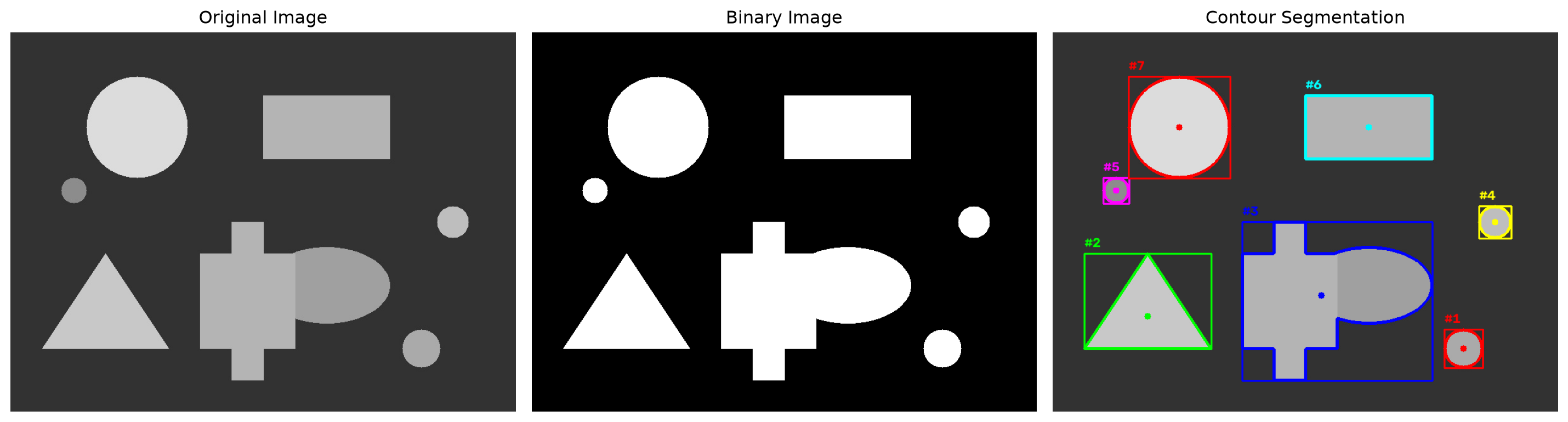
**Contours** are the boundaries of objects. We can use them to segment and analyze individual objects.
```{python}
#| eval: true
def contour_segmentation(image):
    """Find and analyze contours for segmentation"""

    # Convert to grayscale
    if len(image.shape) == 3:
        gray = cv2.cvtColor(image, cv2.COLOR_RGB2GRAY)
    else:
        gray = image

    # Apply threshold
    _, binary = cv2.threshold(gray, 0, 255, cv2.THRESH_BINARY + cv2.THRESH_OTSU)

    # Find contours
    contours, hierarchy = cv2.findContours(binary, cv2.RETR_EXTERNAL, cv2.CHAIN_APPROX_SIMPLE)

    # Create result image
    result = image.copy() if len(image.shape) == 3 else cv2.cvtColor(gray, cv2.COLOR_GRAY2RGB)

    # Analyze each contour
    contour_info = []
    colors = [(255, 0, 0), (0, 255, 0), (0, 0, 255), (255, 255, 0), (255, 0, 255), (0, 255, 255)]

    for i, contour in enumerate(contours):
        # Calculate contour properties
        area = cv2.contourArea(contour)
        perimeter = cv2.arcLength(contour, True)

        # Filter small contours (noise)
        if area > 500:  # Minimum area threshold
            # Get bounding rectangle
            x, y, w, h = cv2.boundingRect(contour)

            # Get center
            M = cv2.moments(contour)
            if M["m00"] != 0:
                cx = int(M["m10"] / M["m00"])
                cy = int(M["m01"] / M["m00"])
            else:
                cx, cy = 0, 0

            # Draw contour and info
            color = colors[i % len(colors)]
            cv2.drawContours(result, [contour], -1, color, 3)
            cv2.rectangle(result, (x, y), (x + w, y + h), color, 2)
            cv2.circle(result, (cx, cy), 5, color, -1)

            # Add text
            cv2.putText(result, f"#{i+1}", (x, y-10), cv2.FONT_HERSHEY_SIMPLEX, 0.7, color, 2)

            contour_info.append({
                'id': i+1,
                'area': area,
                'perimeter': perimeter,
                'center': (cx, cy),
                'bounding_box': (x, y, w, h)
            })

    return binary, result, contour_info

# Apply contour segmentation
binary_contours, contour_result, contour_info = contour_segmentation(img_rgb)

# Display results
plt.figure(figsize=(15, 8))

plt.subplot(1, 3, 1)
plt.imshow(img_rgb)
plt.title("Original Image")
plt.axis('off')

plt.subplot(1, 3, 2)
plt.imshow(binary_contours, cmap='gray')
plt.title("Binary Image")
plt.axis('off')

plt.subplot(1, 3, 3)
plt.imshow(contour_result)
plt.title("Contour Segmentation")
plt.axis('off')

plt.tight_layout()
plt.show()

# Print contour analysis
print("🔍 Contour Analysis Results:")
print("-" * 50)
for info in contour_info:
    print(f"Object #{info['id']}:")
    print(f"  Area: {info['area']:.0f} pixels")
    print(f"  Perimeter: {info['perimeter']:.1f} pixels")
    print(f"  Center: {info['center']}")
    print(f"  Bounding box: {info['bounding_box']}")
    print()
```
## Real-World Application: Document Cleaning
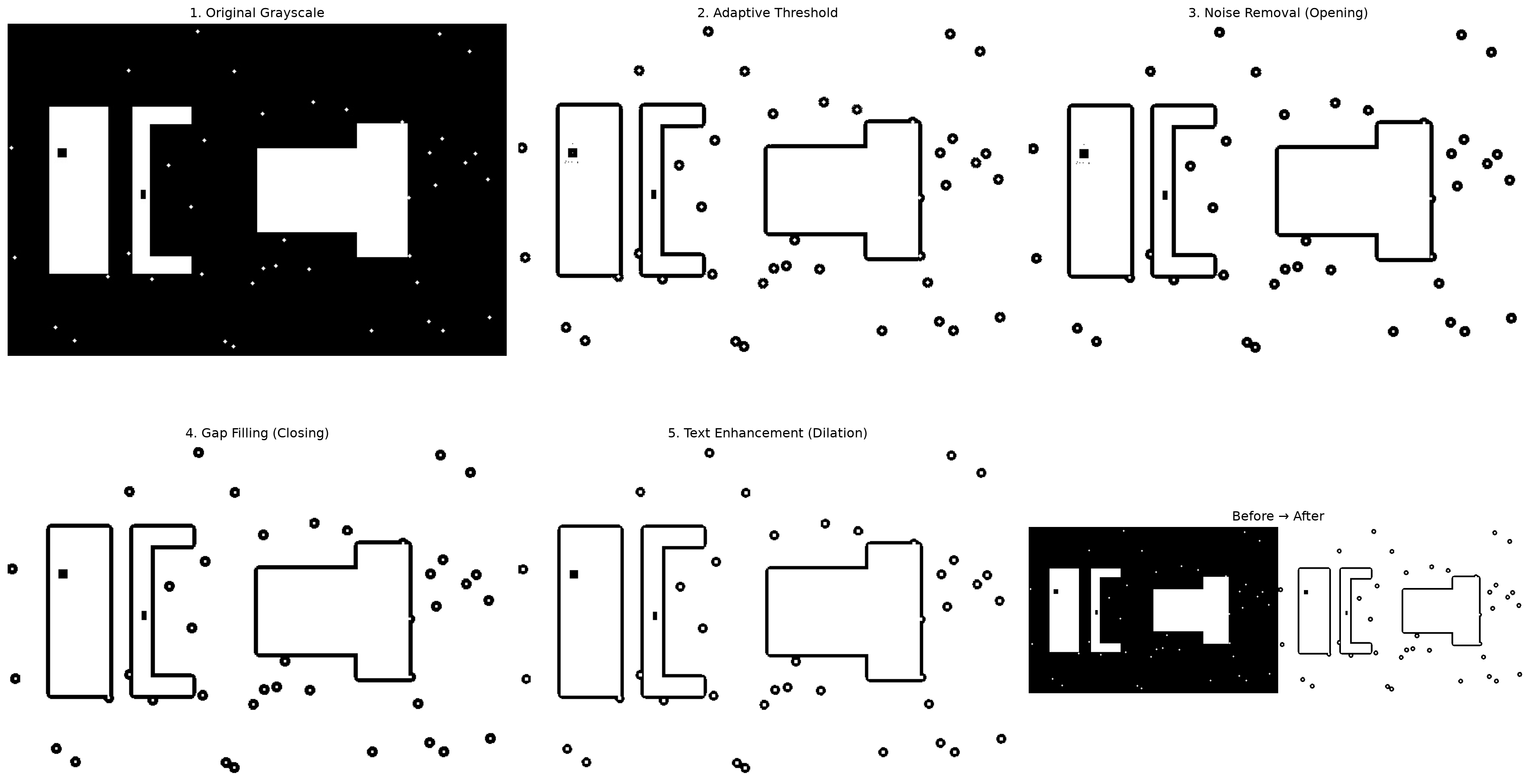
Let's combine multiple techniques to clean up a noisy document:
```{python}
#| eval: true
def document_cleaning_pipeline(image):
    """Complete pipeline for cleaning scanned documents"""

    # Step 1: Convert to grayscale
    if len(image.shape) == 3:
        gray = cv2.cvtColor(image, cv2.COLOR_RGB2GRAY)
    else:
        gray = image

    # Step 2: Apply adaptive thresholding
    binary = cv2.adaptiveThreshold(
        gray, 255, cv2.ADAPTIVE_THRESH_GAUSSIAN_C, cv2.THRESH_BINARY, 11, 2
    )

    # Step 3: Remove noise with opening
    kernel_noise = np.ones((2, 2), np.uint8)
    denoised = cv2.morphologyEx(binary, cv2.MORPH_OPEN, kernel_noise)

    # Step 4: Fill gaps in text with closing
    kernel_fill = np.ones((3, 3), np.uint8)
    filled = cv2.morphologyEx(denoised, cv2.MORPH_CLOSE, kernel_fill)

    # Step 5: Enhance text with dilation
    kernel_enhance = np.ones((2, 2), np.uint8)
    enhanced = cv2.dilate(filled, kernel_enhance, iterations=1)

    return gray, binary, denoised, filled, enhanced

# Apply document cleaning to our morphological demo
gray_doc, binary_doc, denoised_doc, filled_doc, enhanced_doc = document_cleaning_pipeline(morph_img)

# Display the cleaning pipeline
plt.figure(figsize=(20, 12))

plt.subplot(2, 3, 1)
plt.imshow(gray_doc, cmap='gray')
plt.title("1. Original Grayscale")
plt.axis('off')

plt.subplot(2, 3, 2)
plt.imshow(binary_doc, cmap='gray')
plt.title("2. Adaptive Threshold")
plt.axis('off')

plt.subplot(2, 3, 3)
plt.imshow(denoised_doc, cmap='gray')
plt.title("3. Noise Removal (Opening)")
plt.axis('off')

plt.subplot(2, 3, 4)
plt.imshow(filled_doc, cmap='gray')
plt.title("4. Gap Filling (Closing)")
plt.axis('off')

plt.subplot(2, 3, 5)
plt.imshow(enhanced_doc, cmap='gray')
plt.title("5. Text Enhancement (Dilation)")
plt.axis('off')

# Show before/after comparison
plt.subplot(2, 3, 6)
comparison = np.hstack([gray_doc, enhanced_doc])
plt.imshow(comparison, cmap='gray')
plt.title("Before → After")
plt.axis('off')

plt.tight_layout()
plt.show()

print("📄 Document Cleaning Pipeline:")
print("✅ Adaptive thresholding handles varying lighting")
print("✅ Opening removes small noise pixels")
print("✅ Closing fills gaps in letters")
print("✅ Dilation strengthens text strokes")
print("🎯 Result: Clean, readable text!")
```
## Segmentation Comparison Tool
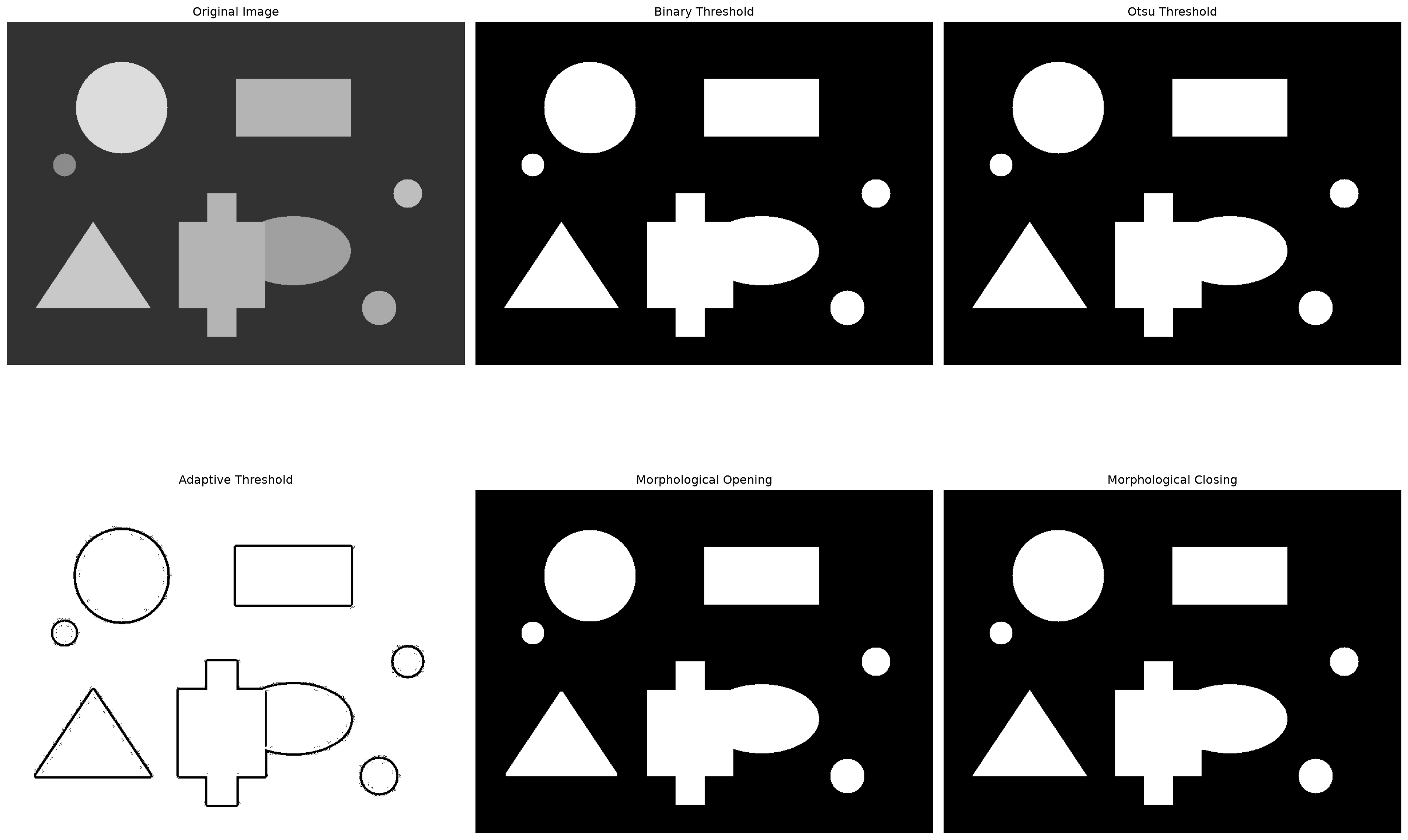
Let's create a tool to compare all segmentation techniques side by side:
```{python}
#| eval: true
def compare_segmentation_techniques(image):
    """Compare multiple segmentation techniques on the same image"""

    # Convert to grayscale
    if len(image.shape) == 3:
        gray = cv2.cvtColor(image, cv2.COLOR_RGB2GRAY)
    else:
        gray = image

    techniques = {}

    # 1. Simple thresholding
    _, techniques['Binary Threshold'] = cv2.threshold(gray, 127, 255, cv2.THRESH_BINARY)

    # 2. Otsu's thresholding
    _, techniques['Otsu Threshold'] = cv2.threshold(gray, 0, 255, cv2.THRESH_BINARY + cv2.THRESH_OTSU)

    # 3. Adaptive thresholding
    techniques['Adaptive Threshold'] = cv2.adaptiveThreshold(
        gray, 255, cv2.ADAPTIVE_THRESH_GAUSSIAN_C, cv2.THRESH_BINARY, 11, 2
    )

    # 4. Morphological opening
    kernel = np.ones((5, 5), np.uint8)
    _, binary = cv2.threshold(gray, 0, 255, cv2.THRESH_BINARY + cv2.THRESH_OTSU)
    techniques['Morphological Opening'] = cv2.morphologyEx(binary, cv2.MORPH_OPEN, kernel)

    # 5. Morphological closing
    techniques['Morphological Closing'] = cv2.morphologyEx(binary, cv2.MORPH_CLOSE, kernel)

    return techniques

# Compare techniques on our demo image
techniques = compare_segmentation_techniques(img_rgb)

# Display comparison
plt.figure(figsize=(20, 15))

plt.subplot(2, 3, 1)
plt.imshow(img_rgb)
plt.title("Original Image")
plt.axis('off')

for i, (name, result) in enumerate(techniques.items(), 2):
    plt.subplot(2, 3, i)
    plt.imshow(result, cmap='gray')
    plt.title(name)
    plt.axis('off')

plt.tight_layout()
plt.show()

print("🎯 Technique Comparison:")
print("- Binary: Simple but effective for uniform lighting")
print("- Otsu: Automatically finds optimal threshold")
print("- Adaptive: Handles varying lighting conditions")
print("- Opening: Removes noise while preserving object shape")
print("- Closing: Fills gaps and connects broken parts")
```
## Your Challenge: Medical Image Segmentation
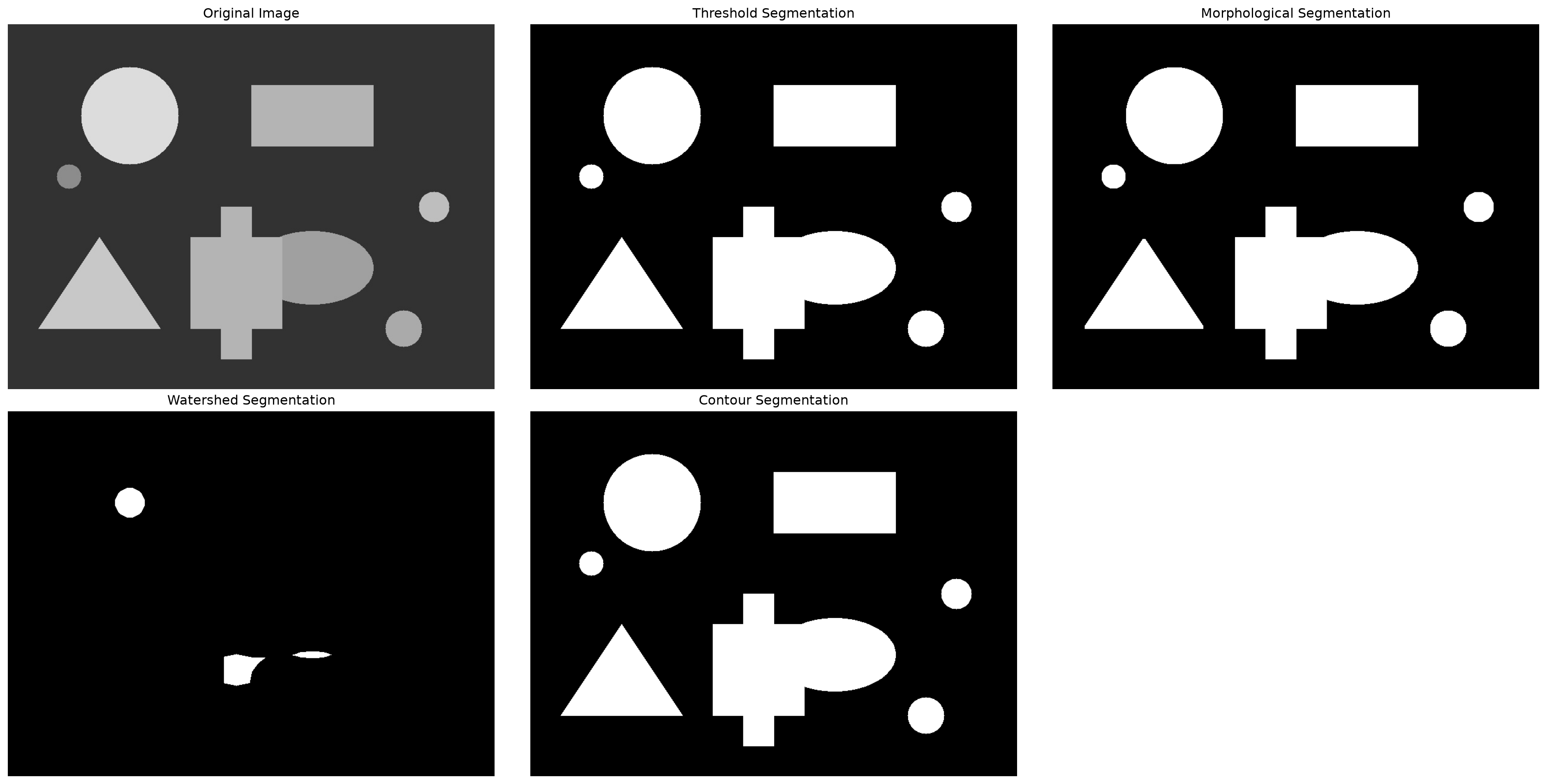
Now it's your turn! Here's a framework for a medical image segmentation system:
```{python}
#| eval: true
class MedicalImageSegmenter:
    def __init__(self):
        self.techniques = {
            'threshold': self.threshold_segment,
            'morphological': self.morphological_segment,
            'watershed': self.watershed_segment,
            'contour': self.contour_segment
        }

    def threshold_segment(self, image, method='otsu'):
        """Apply thresholding segmentation"""
        if len(image.shape) == 3:
            gray = cv2.cvtColor(image, cv2.COLOR_RGB2GRAY)
        else:
            gray = image

        if method == 'otsu':
            _, result = cv2.threshold(gray, 0, 255, cv2.THRESH_BINARY + cv2.THRESH_OTSU)
        elif method == 'adaptive':
            result = cv2.adaptiveThreshold(
                gray, 255, cv2.ADAPTIVE_THRESH_GAUSSIAN_C, cv2.THRESH_BINARY, 11, 2
            )
        else:
            _, result = cv2.threshold(gray, 127, 255, cv2.THRESH_BINARY)

        return result

    def morphological_segment(self, image, operation='opening', kernel_size=5):
        """Apply morphological operations"""
        # First get binary image
        binary = self.threshold_segment(image, 'otsu')

        # Apply morphological operation
        kernel = np.ones((kernel_size, kernel_size), np.uint8)

        if operation == 'opening':
            result = cv2.morphologyEx(binary, cv2.MORPH_OPEN, kernel)
        elif operation == 'closing':
            result = cv2.morphologyEx(binary, cv2.MORPH_CLOSE, kernel)
        elif operation == 'gradient':
            result = cv2.morphologyEx(binary, cv2.MORPH_GRADIENT, kernel)
        else:
            result = binary

        return result

    def watershed_segment(self, image):
        """Apply watershed segmentation"""
        # This is a simplified version
        if len(image.shape) == 3:
            gray = cv2.cvtColor(image, cv2.COLOR_RGB2GRAY)
        else:
            gray = image

        # Apply threshold
        _, binary = cv2.threshold(gray, 0, 255, cv2.THRESH_BINARY + cv2.THRESH_OTSU)

        # Distance transform
        dist_transform = cv2.distanceTransform(binary, cv2.DIST_L2, 5)

        # Find local maxima
        _, markers = cv2.threshold(dist_transform, 0.7 * dist_transform.max(), 255, 0)

        return markers.astype(np.uint8)

    def contour_segment(self, image, min_area=100):
        """Segment using contours"""
        binary = self.threshold_segment(image, 'otsu')

        # Find contours
        contours, _ = cv2.findContours(binary, cv2.RETR_EXTERNAL, cv2.CHAIN_APPROX_SIMPLE)

        # Create result image
        result = np.zeros_like(binary)

        # Draw significant contours
        for contour in contours:
            if cv2.contourArea(contour) > min_area:
                cv2.drawContours(result, [contour], -1, 255, -1)

        return result

    def analyze_segments(self, segmented_image):
        """Analyze segmented regions"""
        # Find connected components
        num_labels, labels, stats, centroids = cv2.connectedComponentsWithStats(segmented_image)

        analysis = {
            'num_objects': num_labels - 1,  # Subtract background
            'total_area': np.sum(stats[1:, cv2.CC_STAT_AREA]),  # Exclude background
            'average_area': np.mean(stats[1:, cv2.CC_STAT_AREA]) if num_labels > 1 else 0,
            'largest_area': np.max(stats[1:, cv2.CC_STAT_AREA]) if num_labels > 1 else 0
        }

        return analysis

# Example usage
segmenter = MedicalImageSegmenter()

# Apply different techniques to our demo image
results = {}
for name, method in segmenter.techniques.items():
    if name == 'morphological':
        results[name] = method(img_rgb, 'opening')
    else:
        results[name] = method(img_rgb)

# Analyze results
print("🏥 Medical Image Segmentation Analysis:")
print("=" * 50)

for name, result in results.items():
    analysis = segmenter.analyze_segments(result)
    print(f"\n{name.upper()} TECHNIQUE:")
    print(f"  Objects detected: {analysis['num_objects']}")
    print(f"  Total area: {analysis['total_area']} pixels")
    print(f"  Average area: {analysis['average_area']:.1f} pixels")
    print(f"  Largest area: {analysis['largest_area']} pixels")

# Visualize results
plt.figure(figsize=(20, 10))

plt.subplot(2, 3, 1)
plt.imshow(img_rgb)
plt.title("Original Image")
plt.axis('off')

for i, (name, result) in enumerate(results.items(), 2):
    plt.subplot(2, 3, i)
    plt.imshow(result, cmap='gray')
    plt.title(f"{name.title()} Segmentation")
    plt.axis('off')

plt.tight_layout()
plt.show()

print("\n💡 Challenge: Try this framework on medical images!")
print("- X-rays: Segment bones from soft tissue")
print("- MRI scans: Identify different brain regions")
print("- Cell images: Count and measure individual cells")
```
## Key Takeaways
- **Thresholding** is your first line of defense - simple but powerful
- **Morphological operations** are like image surgery tools - they reshape and clean
- **Watershed** excels at separating touching objects
- **Contour analysis** gives you detailed object measurements
- **Combine techniques** for robust real-world applications
## What's Coming Next?
In our next post, [**"Feature Magic: What Makes Images Unique"**](06-feature-magic.qmd), we'll discover:
- **SIFT and ORB** feature detectors
- **Feature matching** between images
- **Object recognition** using keypoints
- **Panorama stitching** with feature alignment
You've mastered the art of dividing images into meaningful parts—next, we'll learn to find the unique fingerprints that make each image special!
:::{.callout-tip}
## Hands-On Lab
Ready to segment your own images? Try the complete interactive notebook: [**Image Segmentation Lab**](https://colab.research.google.com/github/hasanpasha/quarto_blog_hasan/blob/main/notebooks/cv-foundations-05-image-segmentation.ipynb)
Experiment with medical images, document cleaning, and object counting!
:::
:::{.callout-note}
## Series Navigation
- **Previous**: [Finding Patterns: Edges, Contours, and Shapes](04-finding-patterns.qmd)
- **Next**: [Feature Magic: What Makes Images Unique](06-feature-magic.qmd)
- **Series Home**: [Computer Vision Foundations](../computer-vision-foundations.qmd)
:::
---
*You've just learned the fundamental techniques for breaking images into meaningful parts! Segmentation is used everywhere from medical imaging to autonomous vehicles. Next, we'll explore how to find unique features that make images recognizable.*