---
title: "Finding Patterns: Edges, Contours, and Shapes"
author: "Hasan"
date: 2025-01-22
categories: [computer-vision, edge-detection, contours, opencv]
tags: [canny, contours, shapes, pattern-recognition]
image: "images/feature-magic-header.jpg"
toc: true
series:
name: "Computer Vision Foundations"
number: 4
format:
html: default
jupyter: python3
search: false
---
## The Detective Story: Teaching Computers to See Patterns
Imagine you're a detective looking at a crime scene photo. Your brain instantly picks out:
- The outline of a footprint in the mud
- The edge of a broken window
- The shape of a mysterious object on the table
How do you do this so effortlessly? You're detecting **edges** and **patterns**—the fundamental building blocks of vision.
Today, we're going to teach computers this same superpower. By the end of this post, your computer will be able to find shapes, count objects, and even detect specific patterns in any image!
## The Edge Detection Revolution
**Edges** are where the magic happens. They're the boundaries between different regions in an image—where one object ends and another begins. Think of them as the "outlines" in a coloring book.
### Why Edges Matter
Before we dive into code, let's understand why edge detection changed everything:
- **Object Recognition**: Edges define object boundaries
- **Feature Extraction**: Corners and curves are key features
- **Noise Reduction**: Edges help separate signal from noise
- **Compression**: JPEG uses edge information to compress images
## Your First Edge Detector: The Canny Algorithm
The **Canny edge detector** is the gold standard—it's been the go-to algorithm for over 30 years! Here's how it works:
```{python}
#| eval: true
import cv2
import numpy as np
import matplotlib.pyplot as plt

# Load and prepare image
img = cv2.imread('images/image.jpg')
img_rgb = cv2.cvtColor(img, cv2.COLOR_BGR2RGB)
gray = cv2.cvtColor(img_rgb, cv2.COLOR_RGB2GRAY)

# Apply Canny edge detection
edges = cv2.Canny(gray, 50, 150)

# Display the results
plt.figure(figsize=(15, 5))

plt.subplot(1, 3, 1)
plt.imshow(img_rgb)
plt.title("Original Image")
plt.axis('off')

plt.subplot(1, 3, 2)
plt.imshow(gray, cmap='gray')
plt.title("Grayscale")
plt.axis('off')

plt.subplot(1, 3, 3)
plt.imshow(edges, cmap='gray')
plt.title("Canny Edges")
plt.axis('off')

plt.tight_layout()
plt.show()

print(f"Found edges in {np.sum(edges > 0)} pixels out of {edges.size} total pixels")
```
**🎯 Try it yourself!** [Open in Colab](https://colab.research.google.com/github/hasanpasha/quarto_blog_hasan/blob/main/notebooks/cv-foundations-04-finding-patterns.ipynb)
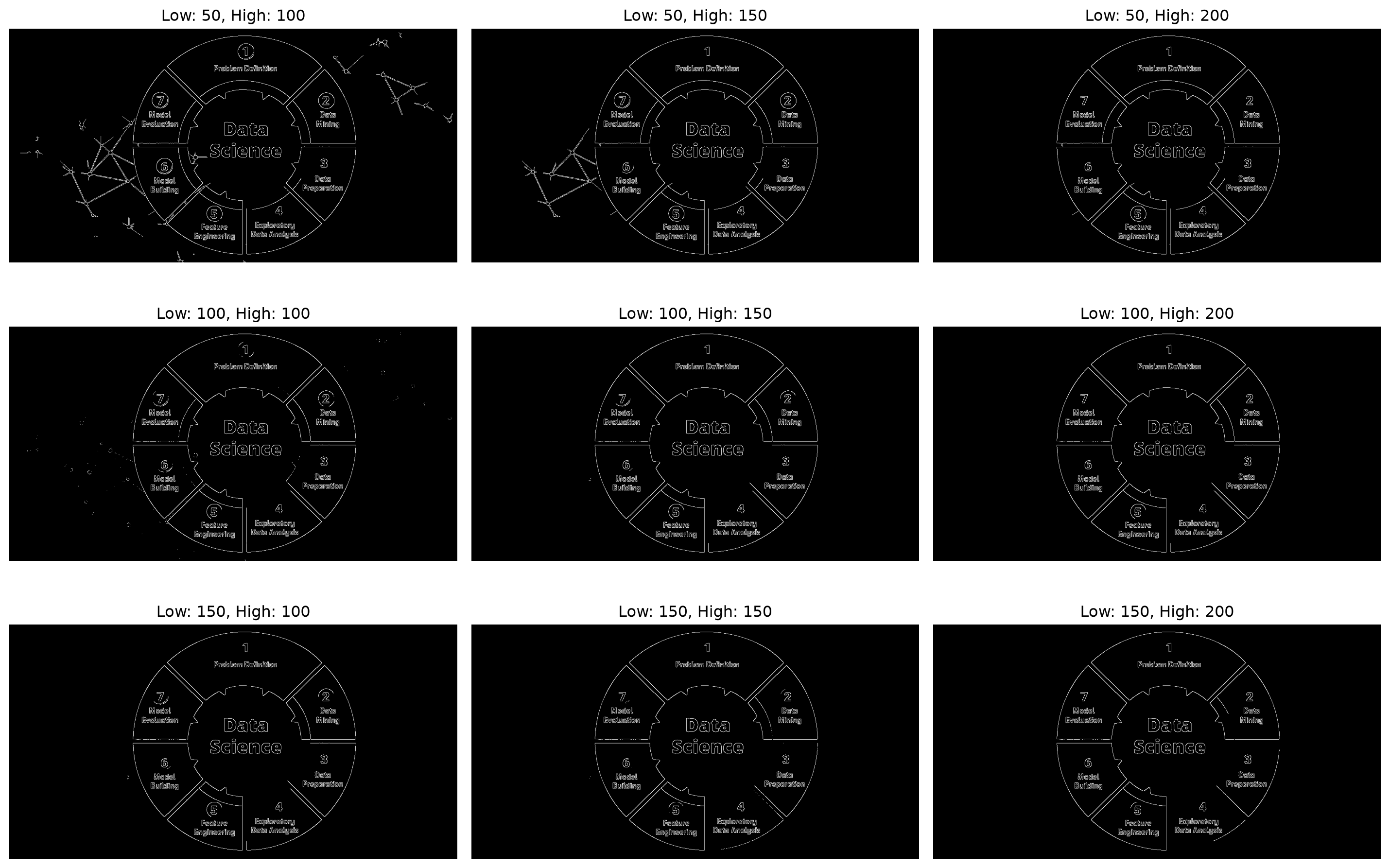
### Understanding the Canny Parameters
The Canny algorithm has two important parameters—think of them as sensitivity controls:
```{python}
#| eval: true
def explore_canny_thresholds(image, low_thresholds, high_thresholds):
    """Explore different Canny threshold combinations"""
    gray = cv2.cvtColor(image, cv2.COLOR_RGB2GRAY)

    plt.figure(figsize=(15, 10))

    plot_idx = 1
    for low in low_thresholds:
        for high in high_thresholds:
            edges = cv2.Canny(gray, low, high)

            plt.subplot(len(low_thresholds), len(high_thresholds), plot_idx)
            plt.imshow(edges, cmap='gray')
            plt.title(f"Low: {low}, High: {high}")
            plt.axis('off')

            plot_idx += 1

    plt.tight_layout()
    plt.show()

# Test different threshold combinations
low_thresholds = [50, 100, 150]
high_thresholds = [100, 150, 200]
explore_canny_thresholds(img_rgb, low_thresholds, high_thresholds)
```
### The Magic Behind Canny
Here's what happens inside the Canny algorithm (don't worry, OpenCV does this for you!):
1. **Blur** the image to reduce noise
2. **Calculate gradients** to find intensity changes
3. **Non-maximum suppression** to thin the edges
4. **Double thresholding** to classify edge pixels
5. **Edge tracking** to connect broken edge segments
## From Edges to Shapes: Contour Detection
Edges are great, but **contours** are even better! A contour is a curve that connects all the edge points around an object's boundary. Think of it as tracing around objects with your finger.
```{python}
#| eval: true
# Find edges first
gray = cv2.cvtColor(img_rgb, cv2.COLOR_RGB2GRAY)
edges = cv2.Canny(gray, 50, 150)

# Find contours
contours, hierarchy = cv2.findContours(edges, cv2.RETR_EXTERNAL, cv2.CHAIN_APPROX_SIMPLE)

print(f"Found {len(contours)} contours!")

# Draw contours on the original image
img_with_contours = img_rgb.copy()
cv2.drawContours(img_with_contours, contours, -1, (0, 255, 0), 2)

# Display results
plt.figure(figsize=(15, 5))

plt.subplot(1, 3, 1)
plt.imshow(img_rgb)
plt.title("Original")
plt.axis('off')

plt.subplot(1, 3, 2)
plt.imshow(edges, cmap='gray')
plt.title("Edges")
plt.axis('off')

plt.subplot(1, 3, 3)
plt.imshow(img_with_contours)
plt.title(f"Contours ({len(contours)} found)")
plt.axis('off')

plt.tight_layout()
plt.show()
```
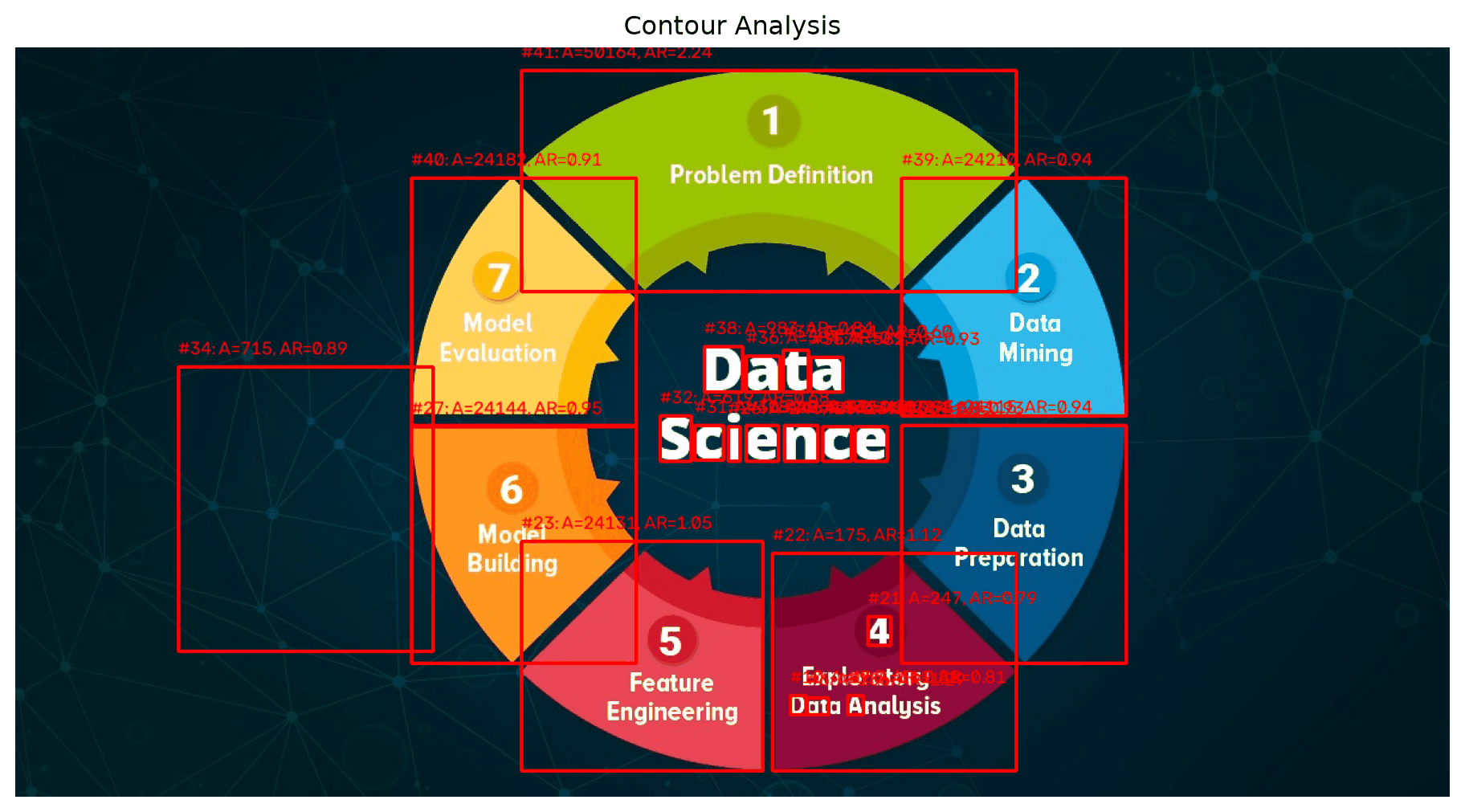
### Analyzing Contour Properties
Once we have contours, we can learn a lot about each shape:
```{python}
#| eval: true
def analyze_contours(contours, image):
    """Analyze properties of each contour"""
    img_analysis = image.copy()

    for i, contour in enumerate(contours):
        # Calculate contour properties
        area = cv2.contourArea(contour)
        perimeter = cv2.arcLength(contour, True)

        # Skip tiny contours (probably noise)
        if area < 100:
            continue

        # Get bounding rectangle
        x, y, w, h = cv2.boundingRect(contour)

        # Calculate aspect ratio
        aspect_ratio = float(w) / h

        # Calculate extent (contour area / bounding rectangle area)
        rect_area = w * h
        extent = float(area) / rect_area

        # Draw bounding rectangle
        cv2.rectangle(img_analysis, (x, y), (x + w, y + h), (255, 0, 0), 2)

        # Add text with properties
        text = f"#{i}: A={int(area)}, AR={aspect_ratio:.2f}"
        cv2.putText(img_analysis, text, (x, y-10),
                   cv2.FONT_HERSHEY_SIMPLEX, 0.5, (255, 0, 0), 1)

        print(f"Contour {i}:")
        print(f"  Area: {area:.0f} pixels")
        print(f"  Perimeter: {perimeter:.0f} pixels")
        print(f"  Aspect Ratio: {aspect_ratio:.2f}")
        print(f"  Extent: {extent:.2f}")
        print()

    return img_analysis

# Analyze our contours
analyzed_img = analyze_contours(contours, img_rgb)

plt.figure(figsize=(12, 8))
plt.imshow(analyzed_img)
plt.title("Contour Analysis")
plt.axis('off')
plt.show()
```
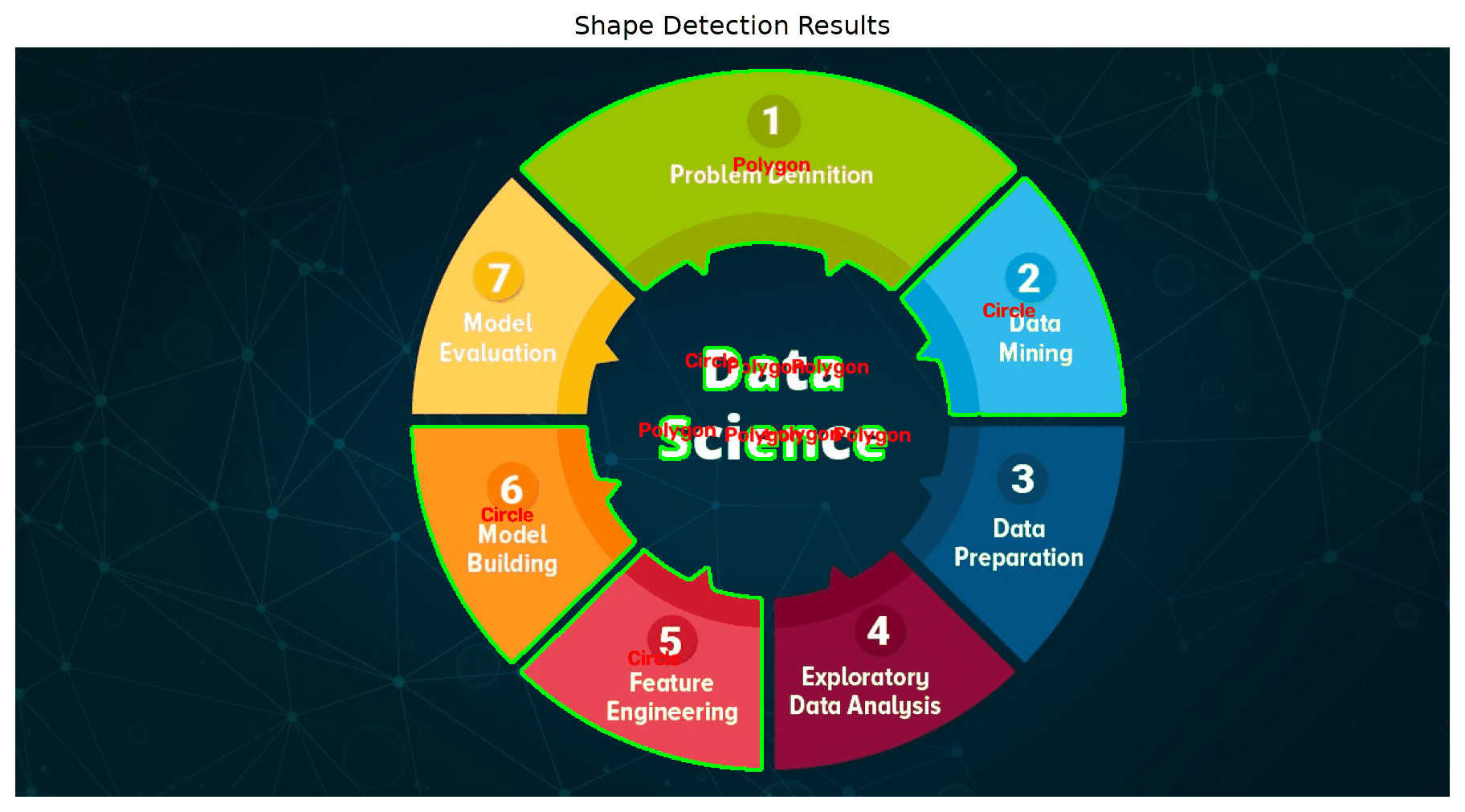
## Shape Detection: Teaching Computers Geometry
Now for the really cool part—detecting specific shapes! Let's build a shape classifier:
```{python}
#| eval: true
def classify_shape(contour):
    """Classify a contour as a specific shape"""
    # Approximate the contour to reduce number of points
    epsilon = 0.02 * cv2.arcLength(contour, True)
    approx = cv2.approxPolyDP(contour, epsilon, True)

    # Get number of vertices
    vertices = len(approx)

    # Calculate aspect ratio
    x, y, w, h = cv2.boundingRect(contour)
    aspect_ratio = float(w) / h

    # Classify based on number of vertices and aspect ratio
    if vertices == 3:
        return "Triangle"
    elif vertices == 4:
        if 0.95 <= aspect_ratio <= 1.05:
            return "Square"
        else:
            return "Rectangle"
    elif vertices == 5:
        return "Pentagon"
    elif vertices > 5:
        # Check if it's circular
        area = cv2.contourArea(contour)
        perimeter = cv2.arcLength(contour, True)
        circularity = 4 * np.pi * area / (perimeter * perimeter)

        if circularity > 0.7:
            return "Circle"
        else:
            return "Polygon"
    else:
        return "Unknown"

def detect_shapes(image):
    """Detect and classify shapes in an image"""
    # Preprocessing
    gray = cv2.cvtColor(image, cv2.COLOR_RGB2GRAY)
    blurred = cv2.GaussianBlur(gray, (5, 5), 0)
    edges = cv2.Canny(blurred, 50, 150)

    # Find contours
    contours, _ = cv2.findContours(edges, cv2.RETR_EXTERNAL, cv2.CHAIN_APPROX_SIMPLE)

    # Classify shapes
    result_img = image.copy()
    shape_counts = {}

    for contour in contours:
        # Skip small contours
        if cv2.contourArea(contour) < 500:
            continue

        # Classify the shape
        shape = classify_shape(contour)

        # Count shapes
        shape_counts[shape] = shape_counts.get(shape, 0) + 1

        # Draw contour and label
        cv2.drawContours(result_img, [contour], -1, (0, 255, 0), 2)

        # Get centroid for text placement
        M = cv2.moments(contour)
        if M["m00"] != 0:
            cx = int(M["m10"] / M["m00"])
            cy = int(M["m01"] / M["m00"])
            cv2.putText(result_img, shape, (cx-30, cy),
                       cv2.FONT_HERSHEY_SIMPLEX, 0.6, (255, 0, 0), 2)

    return result_img, shape_counts

# Test shape detection
shapes_img, shape_counts = detect_shapes(img_rgb)

plt.figure(figsize=(12, 8))
plt.imshow(shapes_img)
plt.title("Shape Detection Results")
plt.axis('off')
plt.show()

print("Detected shapes:")
for shape, count in shape_counts.items():
    print(f"  {shape}: {count}")
```
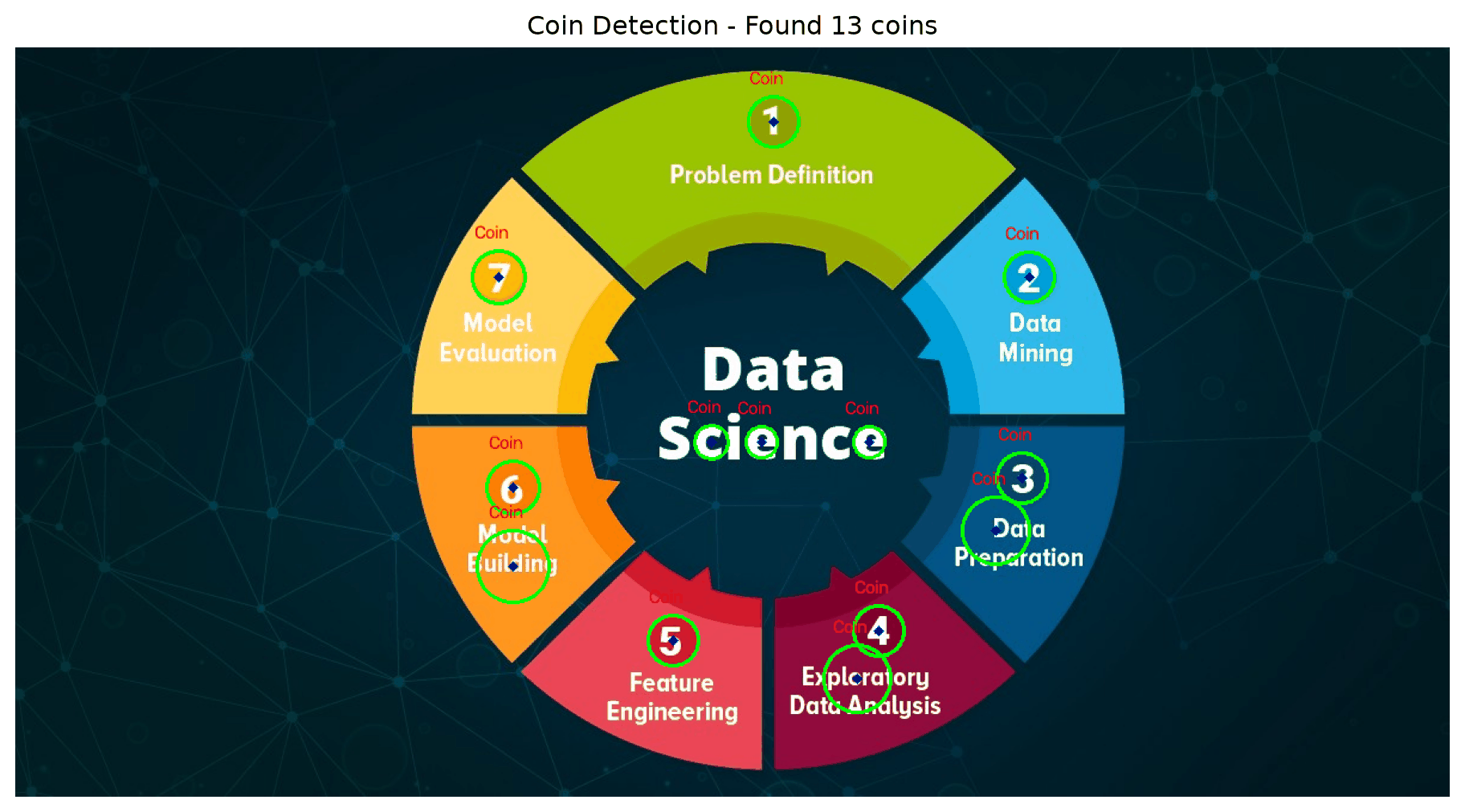
## Real-World Application: Coin Counter
Let's build something practical—a coin counting system:
```{python}
#| eval: true
def count_coins(image):
    """Count circular objects (coins) in an image"""
    # Convert to grayscale
    gray = cv2.cvtColor(image, cv2.COLOR_RGB2GRAY)

    # Apply median blur to reduce noise
    blurred = cv2.medianBlur(gray, 5)

    # Use HoughCircles to detect circular objects
    circles = cv2.HoughCircles(
        blurred,
        cv2.HOUGH_GRADIENT,
        dp=1,
        minDist=30,
        param1=50,
        param2=30,
        minRadius=10,
        maxRadius=100
    )

    result_img = image.copy()
    coin_count = 0

    if circles is not None:
        circles = np.round(circles[0, :]).astype("int")
        coin_count = len(circles)

        # Draw detected circles
        for (x, y, r) in circles:
            cv2.circle(result_img, (x, y), r, (0, 255, 0), 2)
            cv2.circle(result_img, (x, y), 2, (0, 0, 255), 3)
            cv2.putText(result_img, f"Coin", (x-20, y-r-10),
                       cv2.FONT_HERSHEY_SIMPLEX, 0.5, (255, 0, 0), 1)

    return result_img, coin_count

# Test coin counting (works best with images of coins on a plain background)
coins_img, coin_count = count_coins(img_rgb)

plt.figure(figsize=(12, 8))
plt.imshow(coins_img)
plt.title(f"Coin Detection - Found {coin_count} coins")
plt.axis('off')
plt.show()
```
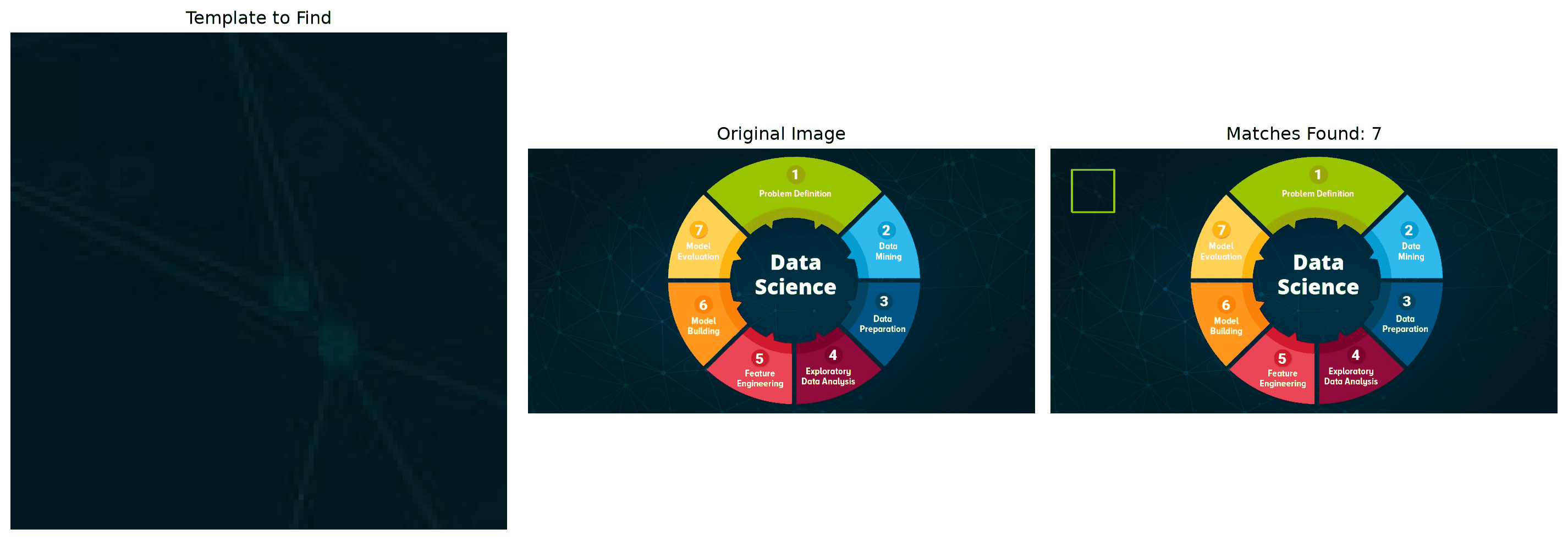
## Advanced Pattern Detection: Template Matching
Sometimes you want to find a specific pattern or object. Template matching is perfect for this:
```{python}
#| eval: true
def find_template(image, template, threshold=0.8):
    """Find template in image using template matching"""
    # Convert both to grayscale
    gray_img = cv2.cvtColor(image, cv2.COLOR_RGB2GRAY)
    gray_template = cv2.cvtColor(template, cv2.COLOR_RGB2GRAY)

    # Perform template matching
    result = cv2.matchTemplate(gray_img, gray_template, cv2.TM_CCOEFF_NORMED)

    # Find locations where matching exceeds threshold
    locations = np.where(result >= threshold)

    # Draw rectangles around matches
    result_img = image.copy()
    h, w = gray_template.shape

    for pt in zip(*locations[::-1]):  # Switch x and y coordinates
        cv2.rectangle(result_img, pt, (pt[0] + w, pt[1] + h), (0, 255, 0), 2)

    return result_img, len(locations[0])

# Create a simple template (you can crop from your image)
# For demo, let's use a small patch from the original image
template = img_rgb[50:150, 50:150]  # 100x100 patch

matched_img, match_count = find_template(img_rgb, template, threshold=0.6)

plt.figure(figsize=(15, 5))

plt.subplot(1, 3, 1)
plt.imshow(template)
plt.title("Template to Find")
plt.axis('off')

plt.subplot(1, 3, 2)
plt.imshow(img_rgb)
plt.title("Original Image")
plt.axis('off')

plt.subplot(1, 3, 3)
plt.imshow(matched_img)
plt.title(f"Matches Found: {match_count}")
plt.axis('off')

plt.tight_layout()
plt.show()
```
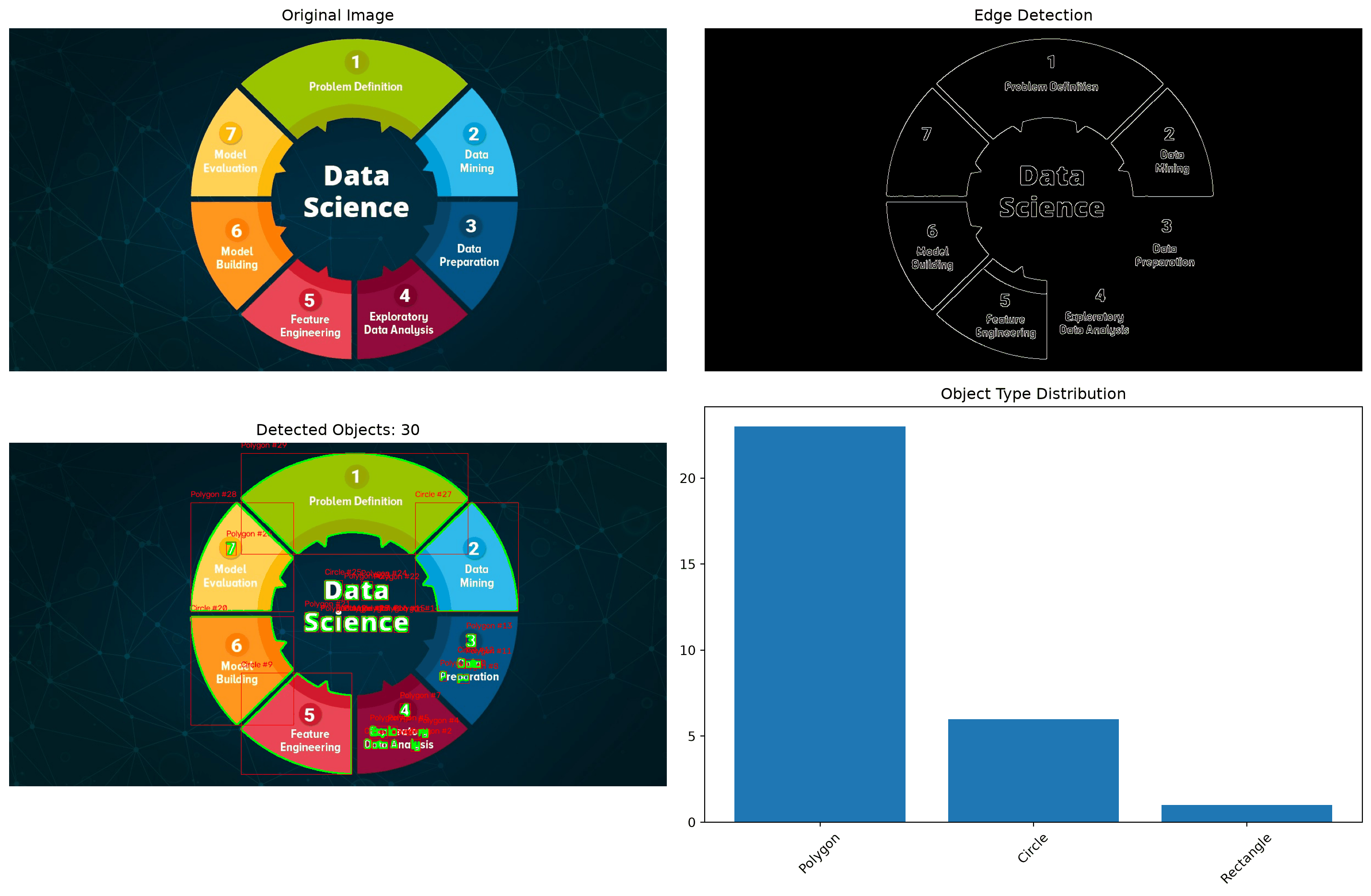
## Building a Complete Object Detection Pipeline
Let's combine everything into a comprehensive object detection system:
```{python}
#| eval: true
class SimpleObjectDetector:
    def __init__(self):
        self.min_contour_area = 100
        self.canny_low = 50
        self.canny_high = 150

    def preprocess(self, image):
        """Preprocess image for better detection"""
        gray = cv2.cvtColor(image, cv2.COLOR_RGB2GRAY)
        blurred = cv2.GaussianBlur(gray, (5, 5), 0)
        return blurred

    def find_objects(self, image):
        """Find all objects in the image"""
        # Preprocess
        processed = self.preprocess(image)

        # Edge detection
        edges = cv2.Canny(processed, self.canny_low, self.canny_high)

        # Find contours
        contours, _ = cv2.findContours(edges, cv2.RETR_EXTERNAL, cv2.CHAIN_APPROX_SIMPLE)

        # Filter contours by area
        valid_contours = [c for c in contours if cv2.contourArea(c) > self.min_contour_area]

        return valid_contours, edges

    def analyze_objects(self, contours, image):
        """Analyze detected objects"""
        results = []
        result_img = image.copy()

        for i, contour in enumerate(contours):
            # Basic properties
            area = cv2.contourArea(contour)
            perimeter = cv2.arcLength(contour, True)

            # Bounding rectangle
            x, y, w, h = cv2.boundingRect(contour)
            aspect_ratio = float(w) / h

            # Shape classification
            shape = classify_shape(contour)

            # Store results
            obj_info = {
                'id': i,
                'area': area,
                'perimeter': perimeter,
                'aspect_ratio': aspect_ratio,
                'shape': shape,
                'bbox': (x, y, w, h)
            }
            results.append(obj_info)

            # Draw on image
            cv2.drawContours(result_img, [contour], -1, (0, 255, 0), 2)
            cv2.rectangle(result_img, (x, y), (x + w, y + h), (255, 0, 0), 1)
            cv2.putText(result_img, f"{shape} #{i}", (x, y-10),
                       cv2.FONT_HERSHEY_SIMPLEX, 0.5, (255, 0, 0), 1)

        return results, result_img

    def detect(self, image):
        """Complete detection pipeline"""
        contours, edges = self.find_objects(image)
        results, result_img = self.analyze_objects(contours, image)

        return {
            'objects': results,
            'result_image': result_img,
            'edges': edges,
            'object_count': len(results)
        }

# Use the detector
detector = SimpleObjectDetector()
detection_results = detector.detect(img_rgb)

# Display results
plt.figure(figsize=(15, 10))

plt.subplot(2, 2, 1)
plt.imshow(img_rgb)
plt.title("Original Image")
plt.axis('off')

plt.subplot(2, 2, 2)
plt.imshow(detection_results['edges'], cmap='gray')
plt.title("Edge Detection")
plt.axis('off')

plt.subplot(2, 2, 3)
plt.imshow(detection_results['result_image'])
plt.title(f"Detected Objects: {detection_results['object_count']}")
plt.axis('off')

plt.subplot(2, 2, 4)
# Create a summary plot
object_shapes = [obj['shape'] for obj in detection_results['objects']]
shape_counts = {}
for shape in object_shapes:
    shape_counts[shape] = shape_counts.get(shape, 0) + 1

if shape_counts:
    shapes = list(shape_counts.keys())
    counts = list(shape_counts.values())
    plt.bar(shapes, counts)
    plt.title("Object Type Distribution")
    plt.xticks(rotation=45)
else:
    plt.text(0.5, 0.5, "No objects detected", ha='center', va='center', transform=plt.gca().transAxes)
    plt.title("No Objects Found")

plt.tight_layout()
plt.show()

# Print detailed results
print("Detection Results:")
print(f"Total objects found: {detection_results['object_count']}")
print("\nObject details:")
for obj in detection_results['objects']:
    print(f"  Object {obj['id']}: {obj['shape']}")
    print(f"    Area: {obj['area']:.0f} pixels")
    print(f"    Aspect Ratio: {obj['aspect_ratio']:.2f}")
    print(f"    Bounding Box: {obj['bbox']}")
```
## Your Challenge: Build a Practical Application
Now it's your turn! Try building one of these applications:
### 🎯 **Challenge 1: Document Page Counter**
```{python}
#| eval: true
def count_pages(image):
    """Count rectangular pages/documents in an image"""
    # Your code here!
    # Hint: Look for large rectangular contours
    pass
```
### 🎯 **Challenge 2: Parking Space Detector**
```{python}
#| eval: true
def detect_parking_spaces(image):
    """Detect empty parking spaces (rectangular regions)"""
    # Your code here!
    # Hint: Look for rectangular shapes of a certain size
    pass
```
### 🎯 **Challenge 3: Playing Card Detector**
```{python}
#| eval: true
def detect_playing_cards(image):
    """Detect playing cards in an image"""
    # Your code here!
    # Hint: Cards are rectangular with a specific aspect ratio
    pass
```
## What's Coming Next?
In our next adventure, [**"Feature Magic: What Makes Images Unique"**](../05-feature-magic/), we'll explore:
- **Keypoint detection** (finding interesting points)
- **Feature descriptors** (describing what makes each point unique)
- **Feature matching** (finding the same object in different images)
- **Panorama stitching** (combining multiple photos)
You've just learned to find shapes and patterns—next, we'll learn to recognize and match them!
## Key Takeaways
- **Edges are fundamental** to computer vision
- **Canny edge detection** is the gold standard algorithm
- **Contours** help us find and analyze shapes
- **Shape classification** uses geometric properties
- **Template matching** finds specific patterns
- **Combining techniques** creates powerful applications
:::{.callout-tip}
## Hands-On Lab
Ready to detect patterns in your own images? Try the complete interactive notebook: [**Pattern Detection Lab**](https://colab.research.google.com/drive/1Finding_Patterns_Lab_123456)
Upload photos and watch your computer find shapes, count objects, and detect patterns!
:::
:::{.callout-note}
## Series Navigation
- **Previous**: [OpenCV Essentials: Your First Computer Vision Toolkit](03-opencv-essentials.qmd)
- **Next**: [Image Segmentation: Dividing and Conquering](05-image-segmentation.qmd)
- **Series Home**: [Computer Vision Foundations](../computer-vision-foundations.qmd)
:::
---
*You've just taught computers to see patterns and shapes! This is a huge milestone—you're now working with the same techniques used in industrial quality control, medical imaging, and autonomous vehicles.*