---
title: "OpenCV Essentials: Your First Computer Vision Toolkit"
author: "Hasan"
date: 2025-01-22
categories: [computer-vision, opencv, image-processing]
tags: [opencv, python, resize, crop, rotate, filters]
image: "https://images.unsplash.com/photo-1551033406-611cf9a28f67?ixlib=rb-4.0.3&ixid=M3wxMjA3fDB8MHxwaG90by1wYWdlfHx8fGVufDB8fHx8fA%3D%3D&auto=format&fit=crop&w=2067&q=80"
toc: true
series:
name: "Computer Vision Foundations"
number: 3
format:
html: default
jupyter: python3
search: false
---
## Meet Your New Best Friend: OpenCV
Imagine you're a carpenter, and someone hands you the ultimate toolbox—every tool you could ever need, perfectly organized and ready to use. That's OpenCV for computer vision!
**OpenCV** (Open Source Computer Vision Library) is like having a Swiss Army knife that can:
- Resize photos faster than Photoshop
- Find faces in crowds
- Track moving objects
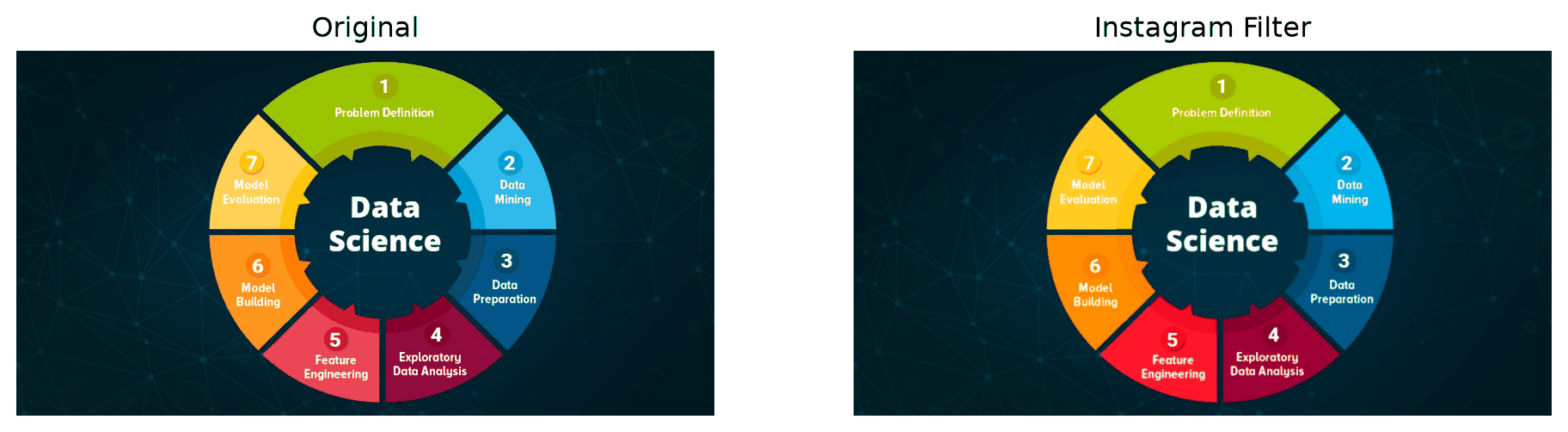
- Apply Instagram-worthy filters
- And about 2,500+ other amazing things!
The best part? It's completely free and used by everyone from Google to your neighbor's startup.
## The Origin Story
Back in 1999, Intel created OpenCV to accelerate computer vision research. Fast forward 25 years, and it's become the **#1 computer vision library** in the world. Every self-driving car, security camera, and photo app uses OpenCV under the hood.
Today, we're going to master the essential 20% that gives you 80% of the power!
## Your First OpenCV Adventure
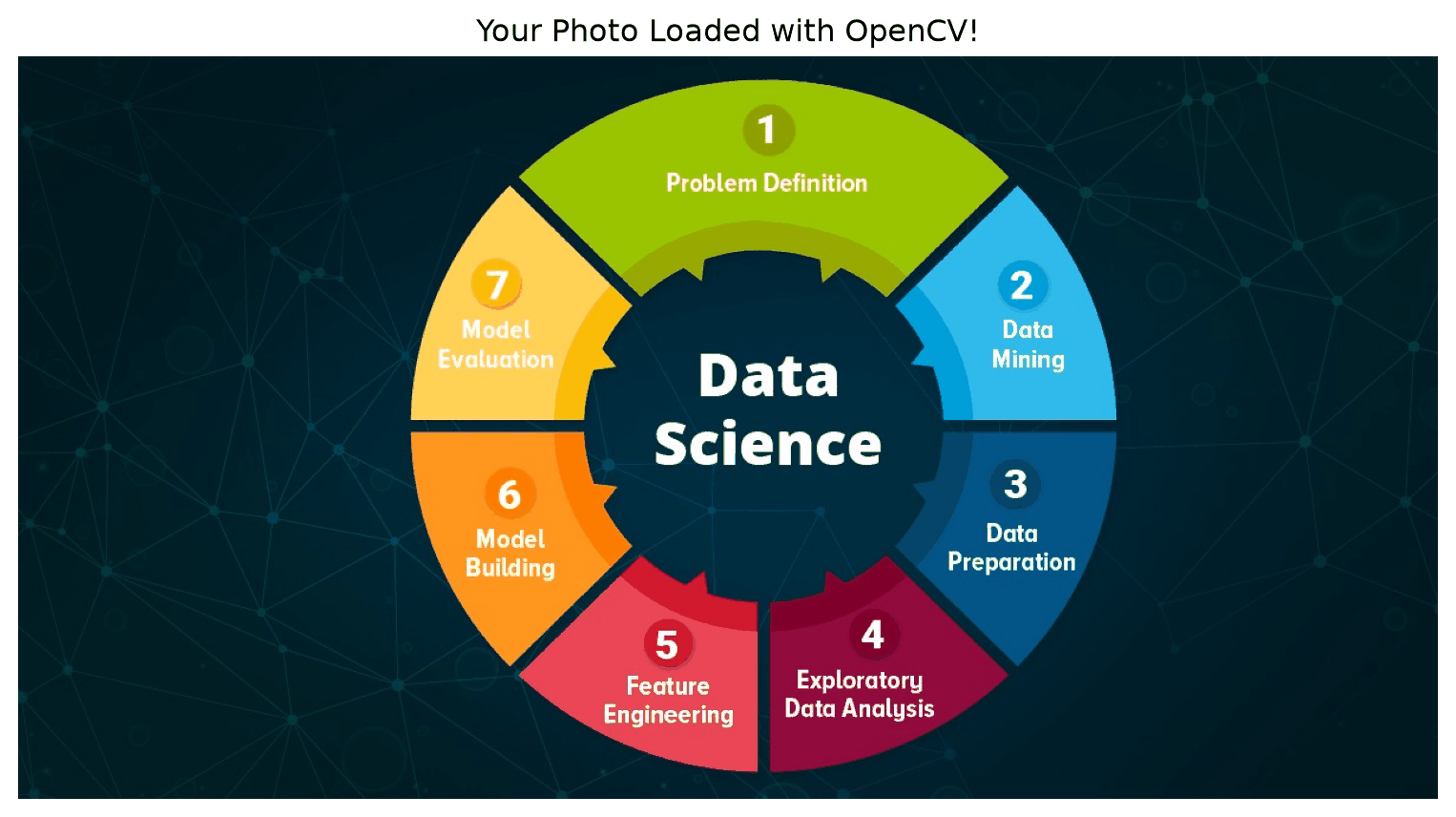
You can use any photo. Just make sure it's in the same folder as this notebook or provide the full path.
Let's start with the basics—loading and displaying an image:
```{python}
#| eval: true
import cv2
import matplotlib.pyplot as plt
import numpy as np

# Load an image (OpenCV reads in BGR format by default)
img = cv2.imread('images/image.jpg')

# Convert BGR to RGB (for matplotlib display)
img_rgb = cv2.cvtColor(img, cv2.COLOR_BGR2RGB)

print(f"Image shape: {img_rgb.shape}")
print(f"Image size: {img_rgb.size} total pixels")

# Display the image
plt.figure(figsize=(10, 6))
plt.imshow(img_rgb)
plt.title("Your Photo Loaded with OpenCV!")
plt.axis('off')
plt.show()
```
**🎯 Try it yourself!** [Open in Colab](https://colab.research.google.com/github/hasanpasha/quarto_blog_hasan/blob/main/notebooks/cv-foundations-03-opencv-essentials.ipynb)
## The Essential Operations: Your Daily Toolkit
### 1. Resizing: Making Images Fit
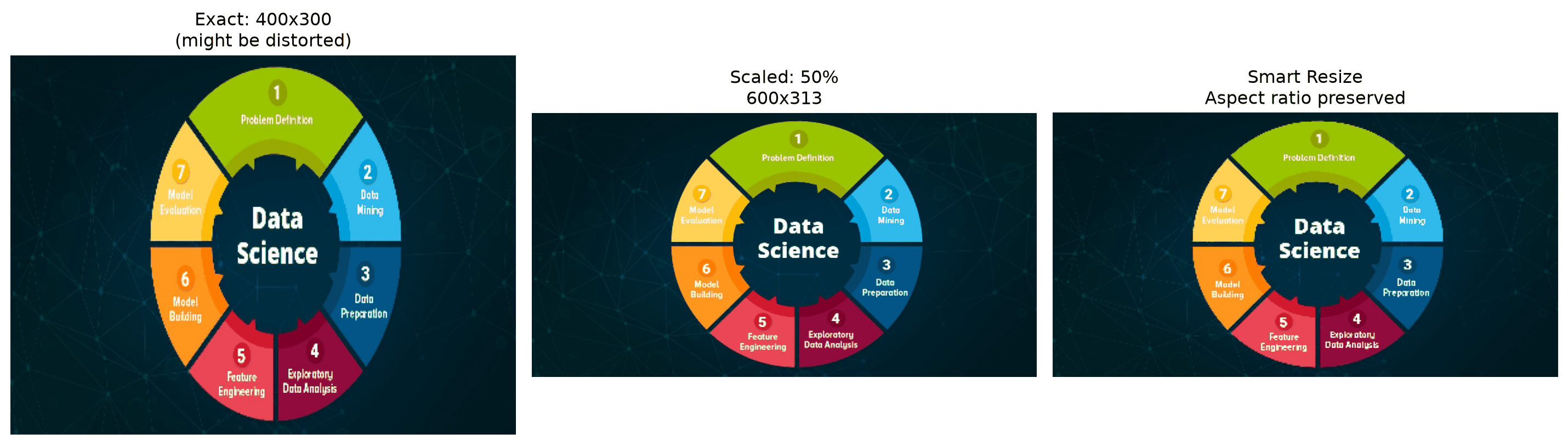
Think of resizing like adjusting a picture frame—sometimes you need it bigger, sometimes smaller:
```{python}
#| eval: true
# Original image
height, width = img_rgb.shape[:2]
print(f"Original size: {width} x {height}")

# Method 1: Specify exact dimensions
resized_exact = cv2.resize(img_rgb, (400, 300))

# Method 2: Scale by percentage
scale_percent = 50  # 50% of original size
new_width = int(width * scale_percent / 100)
new_height = int(height * scale_percent / 100)
resized_scaled = cv2.resize(img_rgb, (new_width, new_height))

# Method 3: Keep aspect ratio (the smart way!)
def resize_with_aspect_ratio(image, width=None, height=None):
    h, w = image.shape[:2]

    if width is None and height is None:
        return image

    if width is None:
        # Calculate width based on height
        ratio = height / h
        width = int(w * ratio)
    else:
        # Calculate height based on width
        ratio = width / w
        height = int(h * ratio)

    return cv2.resize(image, (width, height))

resized_smart = resize_with_aspect_ratio(img_rgb, width=400)

# Show the results
plt.figure(figsize=(15, 5))

plt.subplot(1, 3, 1)
plt.imshow(resized_exact)
plt.title(f"Exact: 400x300\n(might be distorted)")
plt.axis('off')

plt.subplot(1, 3, 2)
plt.imshow(resized_scaled)
plt.title(f"Scaled: 50%\n{new_width}x{new_height}")
plt.axis('off')

plt.subplot(1, 3, 3)
plt.imshow(resized_smart)
plt.title(f"Smart Resize\nAspect ratio preserved")
plt.axis('off')

plt.tight_layout()
plt.show()
```
### 2. Cropping: Focus on What Matters
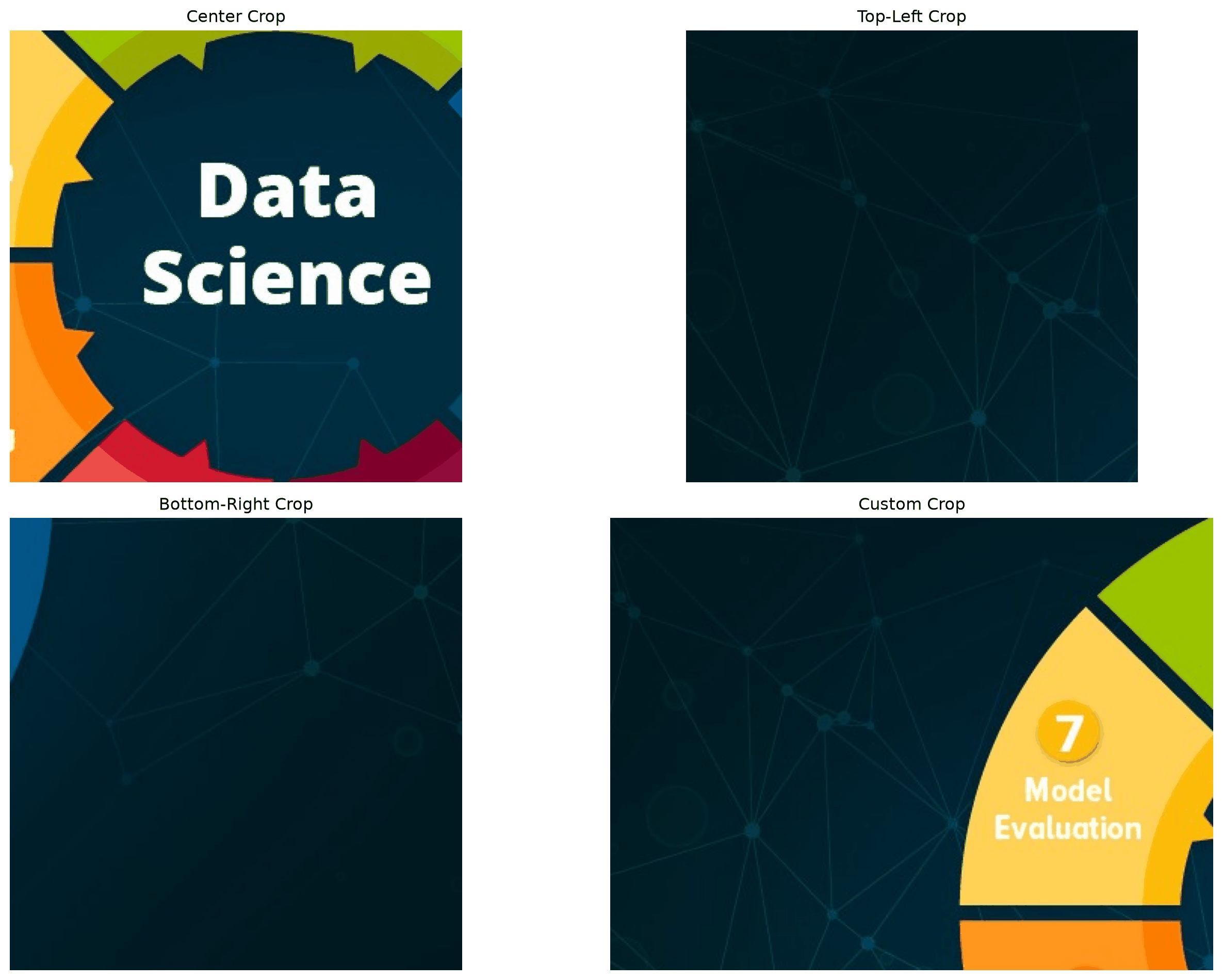
Cropping is like using scissors on a digital photo—you keep the interesting part and throw away the rest:
```{python}
#| eval: true
# Cropping is just array slicing!
height, width = img_rgb.shape[:2]

# Center crop (most common)
crop_size = 300
start_x = (width - crop_size) // 2
start_y = (height - crop_size) // 2
center_crop = img_rgb[start_y:start_y+crop_size, start_x:start_x+crop_size]

# Top-left crop
top_left_crop = img_rgb[0:300, 0:300]

# Bottom-right crop
bottom_right_crop = img_rgb[height-300:height, width-300:width]

# Custom crop function
def smart_crop(image, x, y, width, height):
    """Crop with bounds checking"""
    h, w = image.shape[:2]

    # Make sure we don't go out of bounds
    x = max(0, min(x, w - width))
    y = max(0, min(y, h - height))
    width = min(width, w - x)
    height = min(height, h - y)

    return image[y:y+height, x:x+width]

custom_crop = smart_crop(img_rgb, 100, 50, 400, 300)

# Display results
plt.figure(figsize=(15, 10))

plt.subplot(2, 2, 1)
plt.imshow(center_crop)
plt.title("Center Crop")
plt.axis('off')

plt.subplot(2, 2, 2)
plt.imshow(top_left_crop)
plt.title("Top-Left Crop")
plt.axis('off')

plt.subplot(2, 2, 3)
plt.imshow(bottom_right_crop)
plt.title("Bottom-Right Crop")
plt.axis('off')

plt.subplot(2, 2, 4)
plt.imshow(custom_crop)
plt.title("Custom Crop")
plt.axis('off')

plt.tight_layout()
plt.show()
```
### 3. Rotation: Spinning Photos Like a DJ
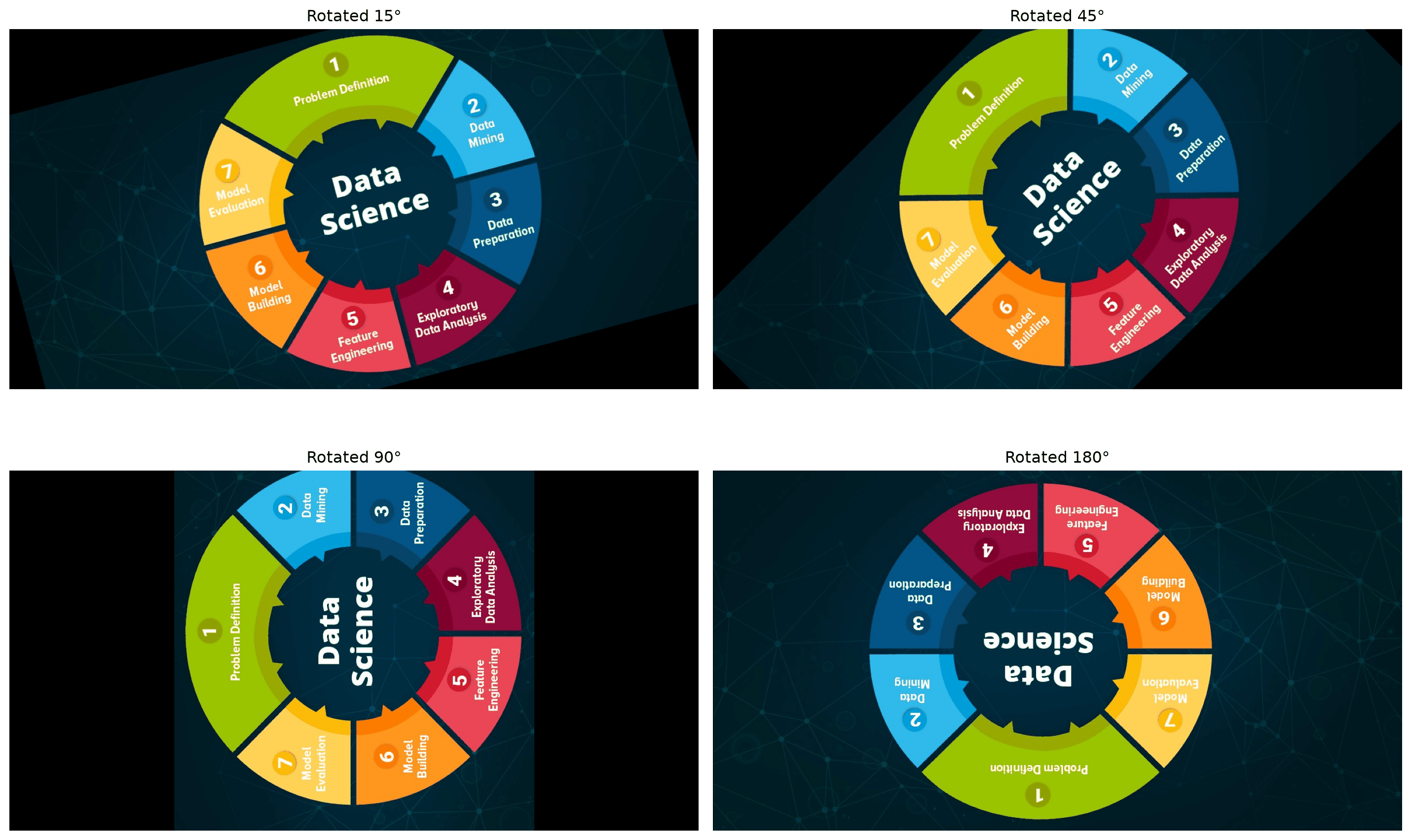
Sometimes your photo is sideways, or you want a creative angle. OpenCV makes rotation easy:
```{python}
#| eval: true
def rotate_image(image, angle):
    """Rotate image by angle (in degrees)"""
    height, width = image.shape[:2]

    # Get rotation matrix
    center = (width // 2, height // 2)
    rotation_matrix = cv2.getRotationMatrix2D(center, angle, 1.0)

    # Apply rotation
    rotated = cv2.warpAffine(image, rotation_matrix, (width, height))
    return rotated

def rotate_and_crop(image, angle):
    """Rotate and crop to remove black borders"""
    height, width = image.shape[:2]
    center = (width // 2, height // 2)

    # Calculate new dimensions to avoid black borders
    angle_rad = np.radians(abs(angle))
    new_width = int(width * np.cos(angle_rad) + height * np.sin(angle_rad))
    new_height = int(height * np.cos(angle_rad) + width * np.sin(angle_rad))

    # Get rotation matrix
    rotation_matrix = cv2.getRotationMatrix2D(center, angle, 1.0)

    # Adjust translation
    rotation_matrix[0, 2] += (new_width - width) / 2
    rotation_matrix[1, 2] += (new_height - height) / 2

    # Apply rotation
    rotated = cv2.warpAffine(image, rotation_matrix, (new_width, new_height))
    return rotated

# Try different rotations
angles = [15, 45, 90, 180]
plt.figure(figsize=(15, 10))

for i, angle in enumerate(angles):
    rotated = rotate_image(img_rgb, angle)

    plt.subplot(2, 2, i+1)
    plt.imshow(rotated)
    plt.title(f"Rotated {angle}°")
    plt.axis('off')

plt.tight_layout()
plt.show()
```
### 4. Flipping: Mirror, Mirror on the Wall
Flipping is like looking in a mirror—super simple but very useful:
```{python}
#| eval: true
# Horizontal flip (left-right mirror)
flipped_horizontal = cv2.flip(img_rgb, 1)

# Vertical flip (upside down)
flipped_vertical = cv2.flip(img_rgb, 0)

# Both directions (180° rotation equivalent)
flipped_both = cv2.flip(img_rgb, -1)

plt.figure(figsize=(15, 5))

plt.subplot(1, 4, 1)
plt.imshow(img_rgb)
plt.title("Original")
plt.axis('off')

plt.subplot(1, 4, 2)
plt.imshow(flipped_horizontal)
plt.title("Horizontal Flip")
plt.axis('off')

plt.subplot(1, 4, 3)
plt.imshow(flipped_vertical)
plt.title("Vertical Flip")
plt.axis('off')

plt.subplot(1, 4, 4)
plt.imshow(flipped_both)
plt.title("Both Directions")
plt.axis('off')

plt.tight_layout()
plt.show()
```
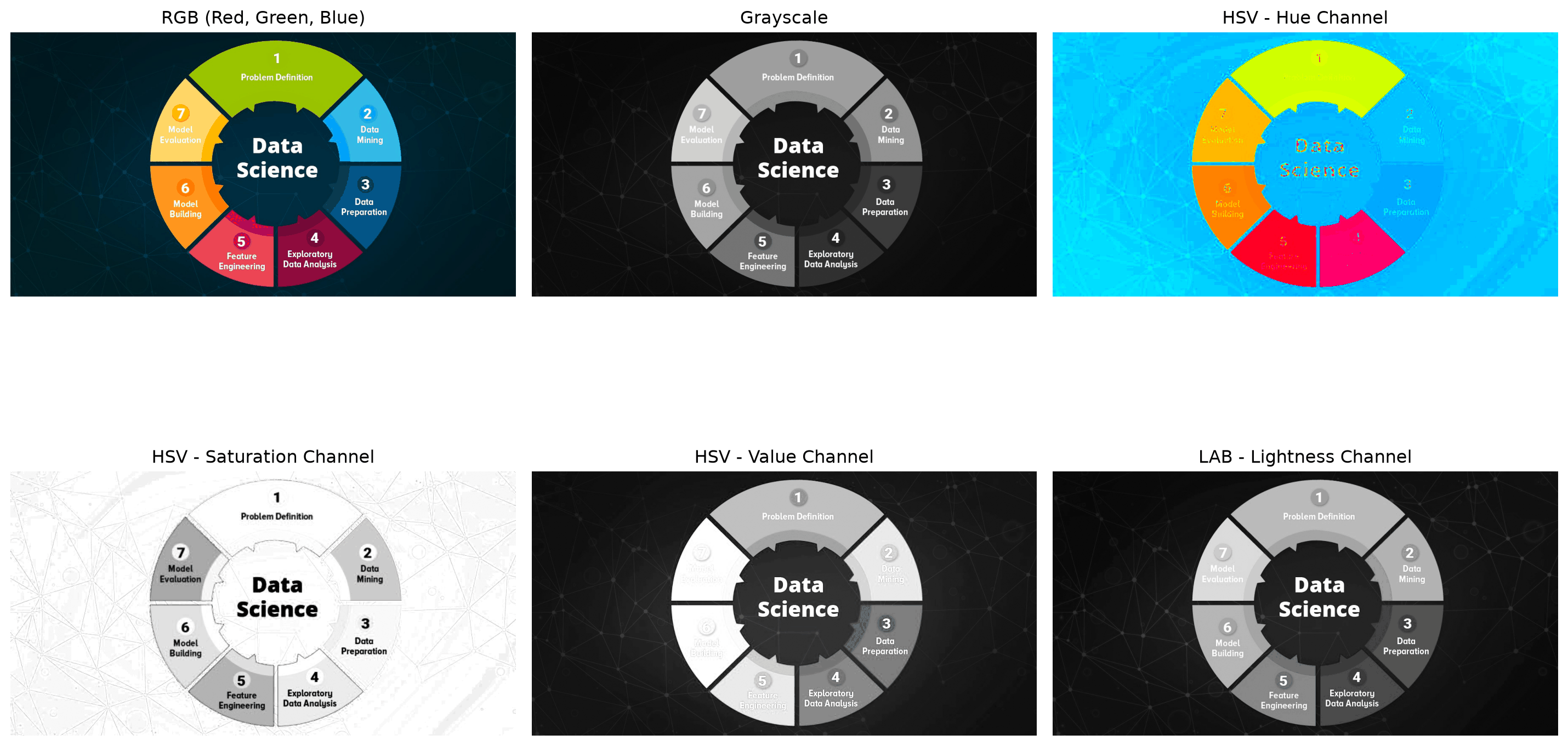
## Color Space Adventures
Remember how we learned about RGB? OpenCV knows many other color spaces too! Each one is useful for different tasks:
```{python}
#| eval: true
# Convert to different color spaces
gray = cv2.cvtColor(img_rgb, cv2.COLOR_RGB2GRAY)
hsv = cv2.cvtColor(img_rgb, cv2.COLOR_RGB2HSV)
lab = cv2.cvtColor(img_rgb, cv2.COLOR_RGB2LAB)

plt.figure(figsize=(15, 10))

# Original RGB
plt.subplot(2, 3, 1)
plt.imshow(img_rgb)
plt.title("RGB (Red, Green, Blue)")
plt.axis('off')

# Grayscale
plt.subplot(2, 3, 2)
plt.imshow(gray, cmap='gray')
plt.title("Grayscale")
plt.axis('off')

# HSV channels
plt.subplot(2, 3, 3)
plt.imshow(hsv[:, :, 0], cmap='hsv')  # Hue
plt.title("HSV - Hue Channel")
plt.axis('off')

plt.subplot(2, 3, 4)
plt.imshow(hsv[:, :, 1], cmap='gray')  # Saturation
plt.title("HSV - Saturation Channel")
plt.axis('off')

plt.subplot(2, 3, 5)
plt.imshow(hsv[:, :, 2], cmap='gray')  # Value
plt.title("HSV - Value Channel")
plt.axis('off')

# LAB
plt.subplot(2, 3, 6)
plt.imshow(lab[:, :, 0], cmap='gray')
plt.title("LAB - Lightness Channel")
plt.axis('off')

plt.tight_layout()
plt.show()

print("Color space info:")
print(f"RGB shape: {img_rgb.shape}")
print(f"Grayscale shape: {gray.shape}")
print(f"HSV shape: {hsv.shape}")
```
## Your First Image Filters
Now for the fun part—applying filters to make your photos look amazing!
### Blur Effects: Softening the World
```{python}
#| eval: true
# Convert to grayscale for cleaner examples
gray_img = cv2.cvtColor(img_rgb, cv2.COLOR_RGB2GRAY)

# Different types of blur
gaussian_blur = cv2.GaussianBlur(gray_img, (15, 15), 0)
median_blur = cv2.medianBlur(gray_img, 15)
bilateral_blur = cv2.bilateralFilter(gray_img, 15, 80, 80)

plt.figure(figsize=(15, 5))

plt.subplot(1, 4, 1)
plt.imshow(gray_img, cmap='gray')
plt.title("Original")
plt.axis('off')

plt.subplot(1, 4, 2)
plt.imshow(gaussian_blur, cmap='gray')
plt.title("Gaussian Blur\n(smooth)")
plt.axis('off')

plt.subplot(1, 4, 3)
plt.imshow(median_blur, cmap='gray')
plt.title("Median Blur\n(noise reduction)")
plt.axis('off')

plt.subplot(1, 4, 4)
plt.imshow(bilateral_blur, cmap='gray')
plt.title("Bilateral Filter\n(edge-preserving)")
plt.axis('off')

plt.tight_layout()
plt.show()
```
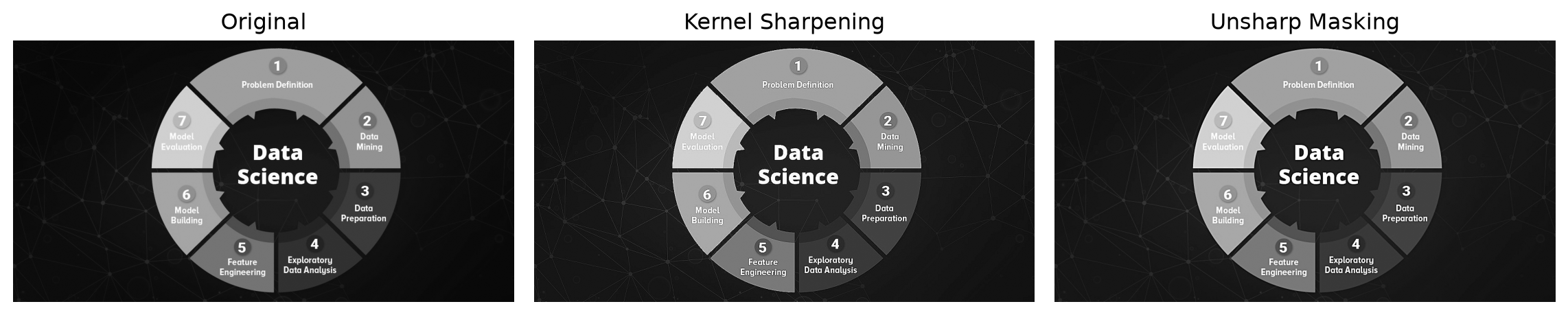
### Sharpening: Making Everything Pop
```{python}
#| eval: true
# Create a sharpening kernel
sharpening_kernel = np.array([
    [0, -1, 0],
    [-1, 5, -1],
    [0, -1, 0]
])

# Apply the kernel
sharpened = cv2.filter2D(gray_img, -1, sharpening_kernel)

# Alternative: Unsharp masking (more sophisticated)
blurred = cv2.GaussianBlur(gray_img, (0, 0), 2.0)
unsharp_mask = cv2.addWeighted(gray_img, 1.5, blurred, -0.5, 0)

plt.figure(figsize=(12, 4))

plt.subplot(1, 3, 1)
plt.imshow(gray_img, cmap='gray')
plt.title("Original")
plt.axis('off')

plt.subplot(1, 3, 2)
plt.imshow(sharpened, cmap='gray')
plt.title("Kernel Sharpening")
plt.axis('off')

plt.subplot(1, 3, 3)
plt.imshow(unsharp_mask, cmap='gray')
plt.title("Unsharp Masking")
plt.axis('off')

plt.tight_layout()
plt.show()
```
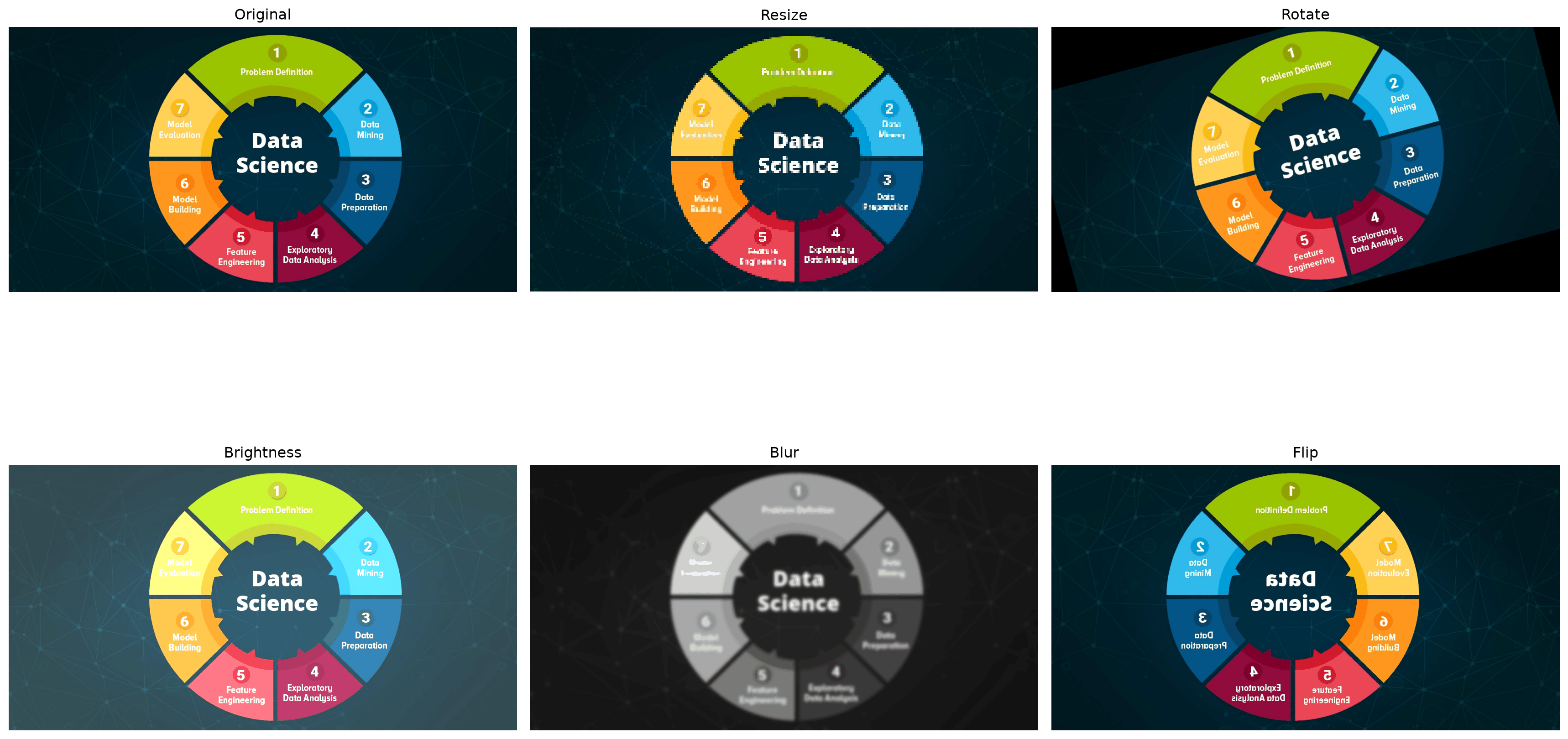
## Building Your First Photo Editor
Let's combine everything we've learned into a simple photo editor:
```{python}
#| eval: true
def photo_editor(image, operation='original', **kwargs):
    """A simple photo editor with multiple operations"""

    if operation == 'resize':
        width = kwargs.get('width', 400)
        return resize_with_aspect_ratio(image, width=width)

    elif operation == 'crop':
        x, y, w, h = kwargs.get('crop_box', (100, 100, 300, 300))
        return smart_crop(image, x, y, w, h)

    elif operation == 'rotate':
        angle = kwargs.get('angle', 45)
        return rotate_image(image, angle)

    elif operation == 'flip':
        direction = kwargs.get('direction', 'horizontal')
        if direction == 'horizontal':
            return cv2.flip(image, 1)
        elif direction == 'vertical':
            return cv2.flip(image, 0)
        else:
            return cv2.flip(image, -1)

    elif operation == 'blur':
        kernel_size = kwargs.get('kernel_size', 15)
        gray = cv2.cvtColor(image, cv2.COLOR_RGB2GRAY)
        blurred = cv2.GaussianBlur(gray, (kernel_size, kernel_size), 0)
        return cv2.cvtColor(blurred, cv2.COLOR_GRAY2RGB)

    elif operation == 'brightness':
        value = kwargs.get('value', 50)
        return np.clip(image.astype(np.int16) + value, 0, 255).astype(np.uint8)

    else:
        return image

# Demo the photo editor
operations = [
    ('original', {}),
    ('resize', {'width': 300}),
    ('rotate', {'angle': 15}),
    ('brightness', {'value': 50}),
    ('blur', {'kernel_size': 21}),
    ('flip', {'direction': 'horizontal'})
]

plt.figure(figsize=(18, 12))

for i, (op, params) in enumerate(operations):
    result = photo_editor(img_rgb, op, **params)

    plt.subplot(2, 3, i+1)
    if len(result.shape) == 2:  # Grayscale
        plt.imshow(result, cmap='gray')
    else:
        plt.imshow(result)
    plt.title(f"{op.title()}")
    plt.axis('off')

plt.tight_layout()
plt.show()
```
## Real-World Applications
Now you might be wondering: "This is cool, but when would I actually use this?" Here are some real examples:
### 1. **Photo Processing Pipeline**
```{python}
#| eval: true
def process_photo_batch(image_path):
    """Process a photo for social media"""
    # Load image
    img = cv2.imread(image_path)
    img_rgb = cv2.cvtColor(img, cv2.COLOR_BGR2RGB)

    # Resize for Instagram (square format)
    img_resized = resize_with_aspect_ratio(img_rgb, width=1080)

    # Center crop to square
    h, w = img_resized.shape[:2]
    size = min(h, w)
    start_x = (w - size) // 2
    start_y = (h - size) // 2
    img_square = img_resized[start_y:start_y+size, start_x:start_x+size]

    # Apply slight blur for dreamy effect
    img_final = cv2.GaussianBlur(img_square, (3, 3), 0)

    return img_final
```
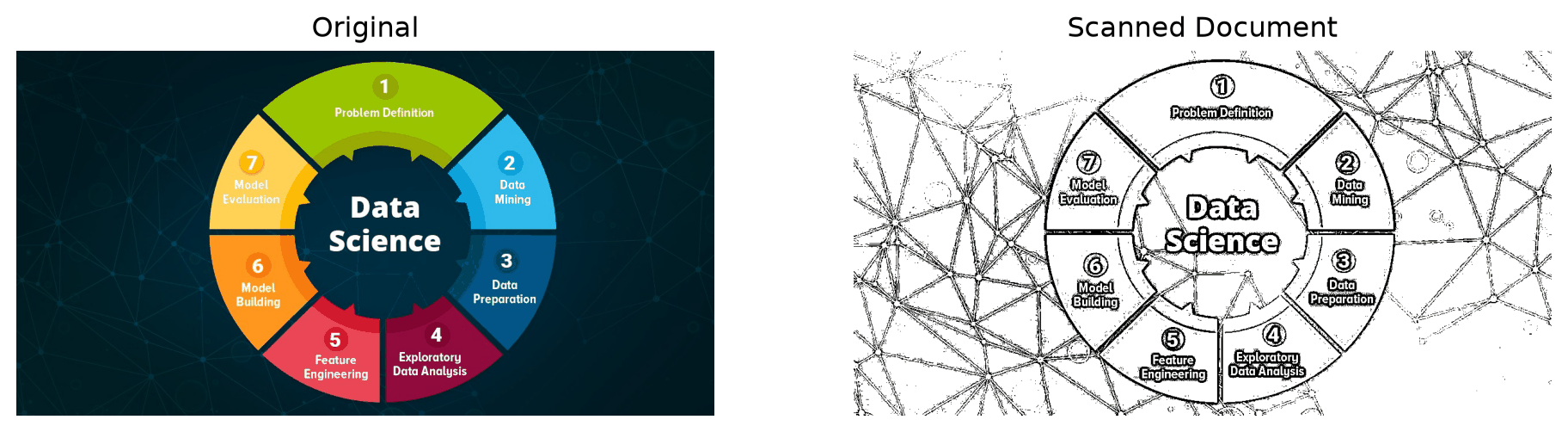
### 2. **Document Scanner**
```{python}
#| eval: true
def scan_document(image):
    """Simple document scanner"""
    # Convert to grayscale
    gray = cv2.cvtColor(image, cv2.COLOR_RGB2GRAY)

    # Apply adaptive thresholding (makes text crisp)
    binary = cv2.adaptiveThreshold(
        gray, 255, cv2.ADAPTIVE_THRESH_GAUSSIAN_C,
        cv2.THRESH_BINARY, 11, 2
    )

    return binary

# Try it on your image (if it has text)
scanned = scan_document(img_rgb)
plt.figure(figsize=(12, 6))
plt.subplot(1, 2, 1)
plt.imshow(img_rgb)
plt.title("Original")
plt.axis('off')
plt.subplot(1, 2, 2)
plt.imshow(scanned, cmap='gray')
plt.title("Scanned Document")
plt.axis('off')
plt.show()
```
## The Power of Combining Operations
The real magic happens when you combine multiple operations:
```{python}
#| eval: true
def instagram_filter(image):
    """Create an Instagram-style vintage filter"""
    # Step 1: Slight blur for dreamy effect
    blurred = cv2.GaussianBlur(image, (3, 3), 0)

    # Step 2: Increase saturation (convert to HSV)
    hsv = cv2.cvtColor(blurred, cv2.COLOR_RGB2HSV)
    hsv[:, :, 1] = np.clip(hsv[:, :, 1] * 1.3, 0, 255)  # Boost saturation
    enhanced = cv2.cvtColor(hsv, cv2.COLOR_HSV2RGB)

    # Step 3: Warm color temperature (add yellow tint)
    warm = enhanced.copy().astype(np.float32)
    warm[:, :, 0] = np.clip(warm[:, :, 0] * 1.1, 0, 255)  # More red
    warm[:, :, 1] = np.clip(warm[:, :, 1] * 1.05, 0, 255)  # More green

    return warm.astype(np.uint8)

# Apply the filter
filtered = instagram_filter(img_rgb)

plt.figure(figsize=(12, 6))
plt.subplot(1, 2, 1)
plt.imshow(img_rgb)
plt.title("Original")
plt.axis('off')
plt.subplot(1, 2, 2)
plt.imshow(filtered)
plt.title("Instagram Filter")
plt.axis('off')
plt.show()
```
## Your Homework: Build Something Cool!
Before we move to the next post, try these challenges:
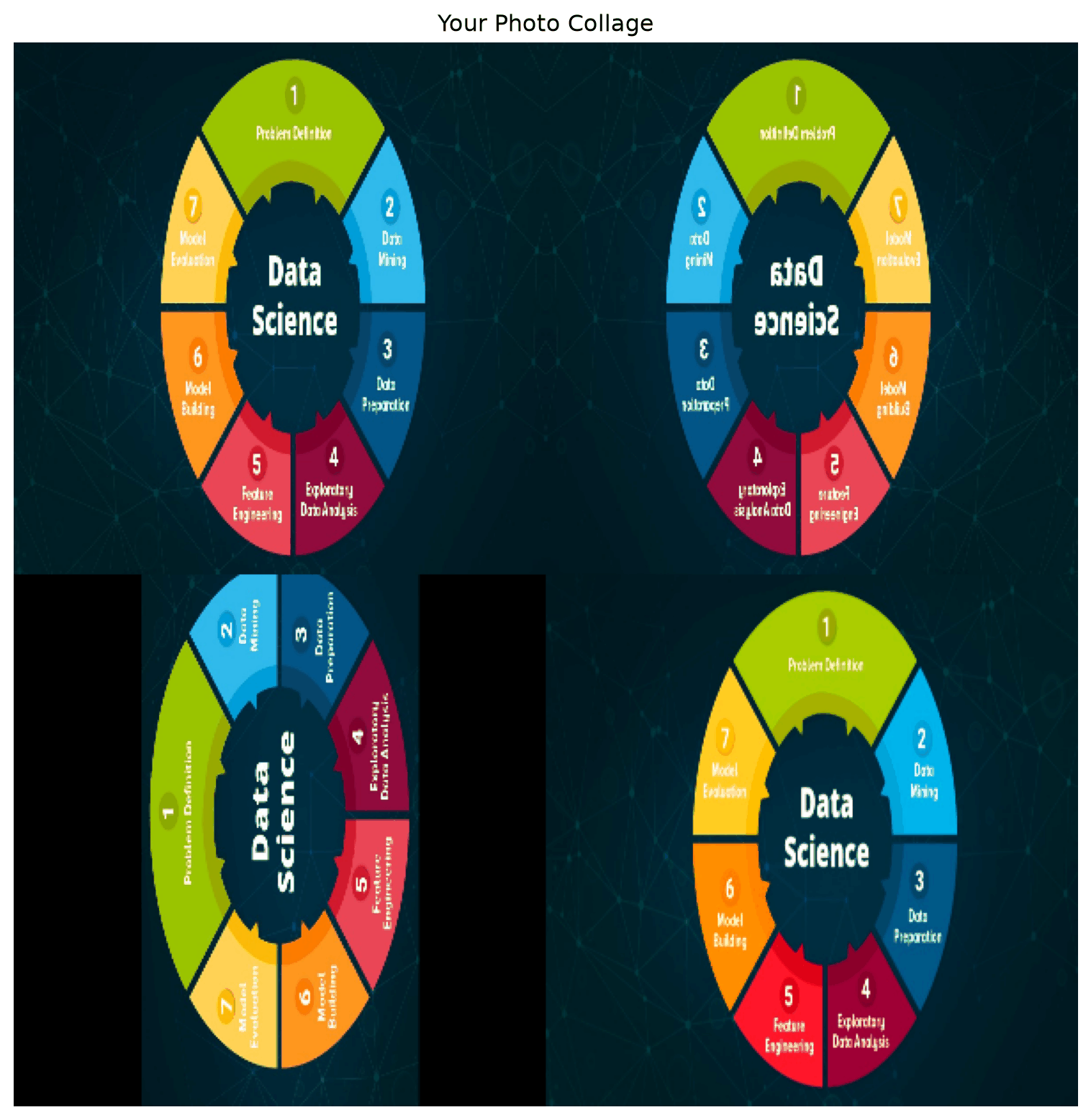
### 🎯 **Challenge 1: Photo Collage Maker**
```{python}
#| eval: true
def create_collage(images, grid_size=(2, 2)):
    """Create a photo collage"""
    rows, cols = grid_size

    # Resize all images to same size
    target_size = (300, 300)
    resized_images = []

    for img in images[:rows*cols]:  # Take only what we need
        resized = cv2.resize(img, target_size)
        resized_images.append(resized)

    # Create the collage
    row_images = []
    for r in range(rows):
        row_imgs = resized_images[r*cols:(r+1)*cols]
        if len(row_imgs) == cols:
            row_combined = np.hstack(row_imgs)
            row_images.append(row_combined)

    if len(row_images) == rows:
        collage = np.vstack(row_images)
        return collage

    return None

# Try it with multiple copies of your image (or different images)
images = [img_rgb, cv2.flip(img_rgb, 1), rotate_image(img_rgb, 90), filtered]
collage = create_collage(images)

if collage is not None:
    plt.figure(figsize=(10, 10))
    plt.imshow(collage)
    plt.title("Your Photo Collage")
    plt.axis('off')
    plt.show()
```
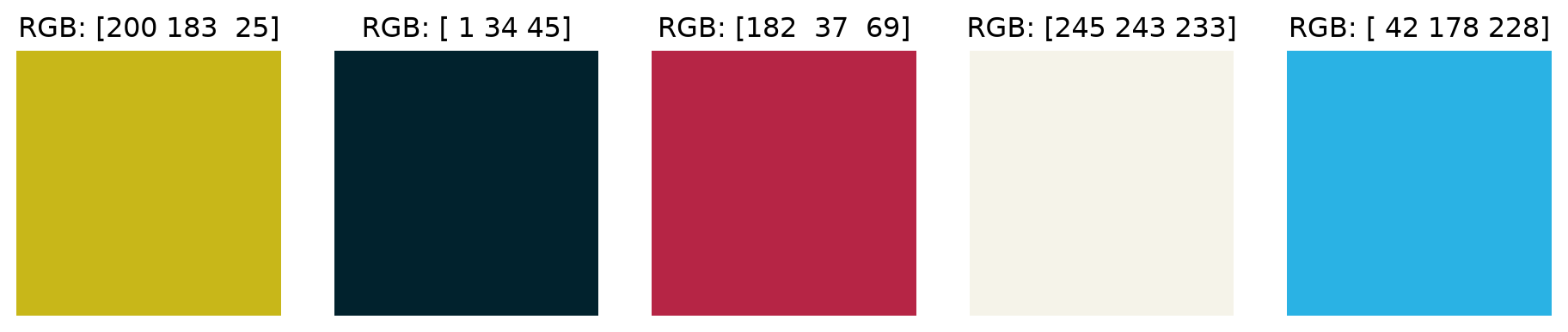
### 🎯 **Challenge 2: Color Palette Extractor**
```{python}
#| eval: true
def extract_dominant_colors(image, k=5):
    """Extract dominant colors from an image"""
    # Reshape image to be a list of pixels
    pixels = image.reshape(-1, 3)
    pixels = np.float32(pixels)

    # Use k-means clustering to find dominant colors
    criteria = (cv2.TERM_CRITERIA_EPS + cv2.TERM_CRITERIA_MAX_ITER, 100, 0.2)
    _, labels, centers = cv2.kmeans(pixels, k, None, criteria, 10, cv2.KMEANS_RANDOM_CENTERS)

    # Convert back to uint8
    centers = np.uint8(centers)

    return centers

# Extract colors
colors = extract_dominant_colors(img_rgb)

# Display the palette
plt.figure(figsize=(12, 3))
for i, color in enumerate(colors):
    plt.subplot(1, len(colors), i+1)
    color_patch = np.full((100, 100, 3), color, dtype=np.uint8)
    plt.imshow(color_patch)
    plt.title(f"RGB: {color}")
    plt.axis('off')
plt.show()
```
## What's Next?
In our next post, [**"Finding Patterns: Edges, Contours, and Shapes"**](../04-finding-patterns/), we'll discover how computers find objects in images:
- Edge detection (finding boundaries)
- Contour detection (finding shapes)
- Shape analysis (counting objects)
- Your first object detector!
You now have a solid foundation in image manipulation. Next, we'll teach computers to *understand* what they're seeing!
## Key Takeaways
- **OpenCV is your Swiss Army knife** for computer vision
- **Basic operations** (resize, crop, rotate, flip) are the building blocks
- **Color spaces** give you different ways to analyze images
- **Filters** can enhance or stylize your images
- **Combining operations** creates powerful effects
:::{.callout-tip}
## Hands-On Lab
Ready to experiment with all these techniques? Try the complete interactive notebook: [**OpenCV Essentials Lab**](https://colab.research.google.com/github/hasanpasha/quarto_blog_hasan/blob/main/notebooks/cv-foundations-03-opencv-essentials.ipynb)
Upload your own photos and build your own filters!
:::
:::{.callout-note}
## Series Navigation
- **Previous**: [Images as Data: How Computers See the World](02-images-as-data.qmd)
- **Next**: [Finding Patterns: Edges, Contours, and Shapes](04-finding-patterns.qmd)
- **Series Home**: [Computer Vision Foundations](../computer-vision-foundations.qmd)
:::
---
*You've just mastered the essential tools of computer vision! In the next post, we'll use these tools to teach computers to find and recognize objects in images.*